

You’ll end up with a flipbook folder that a webmaster can drop onto your server, or one uploaded by the software’s own FTP client.
You’ll need
- The PDF, imported into the software.
- The domain the flipbook will be hosted at, added once under CONTENT → Profile → Setup → Domains.
To allow manual uploading of Flipbooks, the software exports the Flipbook project folder locally which you or your webmaster can then upload to your server.
Follow the steps below to manually upload your publications to your own server.
Build the Flipbook
- Import your PDF into the software
- In the ‘Design’ tab, make the necessary edits and add the features you want for your publication.
- When you are ready to publish, go to the Output tab and make sure Online is ticked and Upload is not ticked.
- Click Build and when finished save and exit the software.
- Locate your newly published project folder and send it to whoever will be uploading the folder to your server using a file sharing service like DropBox, Google Drive, or WeTransfer.
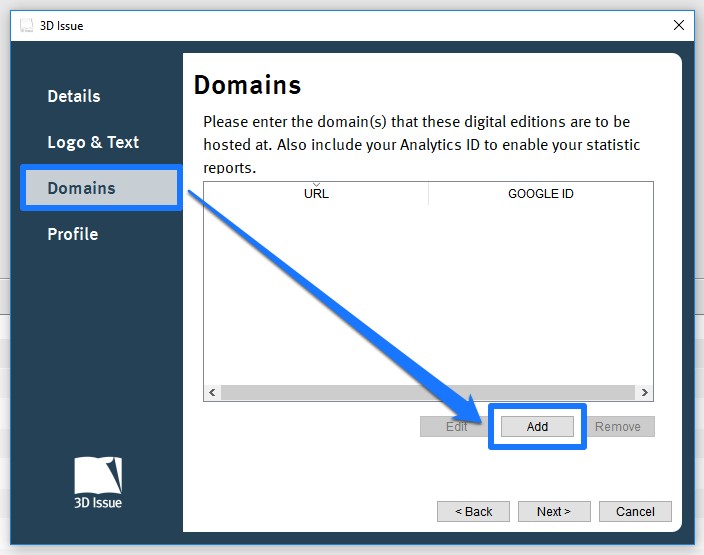
- You may need to add your domain into your domains list (CONTENT -> Profile -> Setup -> Domains) as seen below.
- Click Add.
- Enter the domain where the flipbook will be hosted at.
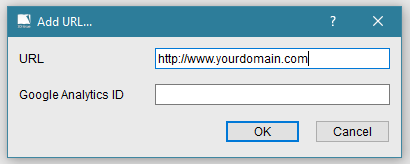
You only have to add your domain to the software once.
Upload
- Remove the DO_NOT_UPLOAD folder (keep this at a safe location) from the project folder they receive from you.
- Open their FTP software (for example, FileZilla) and connect to your website.
- Drag and drop the whole project folder to your website to upload.
- Once uploaded they can place the DO_NOT_UPLOAD folder back into the project folder.
When this is completed, your webmaster will be able to provide you with a direct link to your publication.
Alternatively, you can upload your digital publications to your own server with the built-in FTP client in the software, you can find more information on how to do this at the link below. Upload to your own server over FTP.
On the Freemium edition
Flipbooks are designed for the web and for security purposes will only work within the software by clicking the View button, or by uploading them to a web server. The Freemium build exports the same project folder, and there is no webmaster in the loop: you upload it yourself, and the folder’s own name becomes the last part of its address.
Freemium: what you need
- An FTP client, such as FileZilla or Cyberduck.
- Your hosting provider’s FTP server address, username, password and port number.
Freemium: upload the folder
- Connect to your server. Open your FTP client and enter your connection details, then click Connect — Quickconnect in FileZilla.
- Navigate to the destination folder. Once connected you will see the directory structure of your hosting environment; go to the directory the flipbook is to be stored in.
- Rename the output folder if you want a different address. The folder’s title becomes the last part of the URL used to reach the flipbook, so avoid spaces and special characters in the folder name — hyphens and underscores are fine.
- Upload your files. Drag them from the local panel in the FTP client to the remote panel.
- Verify the upload. Load the remote location in a browser. The flipbook answers at the path you navigated to plus the folder name, for example
https://www.yourdomain.com/path_navigated_to_in_step_2/uploaded_folder_name.
If it doesn’t work
- The publication is not registered on this domain. The hosting domain has to be in the software’s Domains list — and it only needs adding once.
- You would rather upload from the software. The built-in FTP client does it without exporting a folder for someone else to place; the folder route is for handing the job to a webmaster.
- The Freemium upload does not load at the URL. Check that the folder you navigated to holds the files, and that the address is the path you chose plus the folder name you uploaded.
- Sharing shows the default logo instead of the cover. A hand-uploaded build carries the publication’s own address in its page metadata, and that has to be corrected in the files: When I share my flipbook on Facebook, it shows the 3D Issue logo instead of the cover image.