

PDF files arrive in one of two page arrangements — one PDF page per screen, or two facing pages — and the LAYOUT options tell the desktop software which one your file uses. The setting describes the PDF’s own page arrangement; it does not change how the flipbook looks online. The same LAYOUT panel carries Remove Bleed for a PDF that still shows bleed, registration or crop marks; Removing bleed, registration & crop marks within 3D Issue Flipbooks Desktop Software walks through the Auto, Manual and Exact options.
When you import your PDF(s) into the desktop software, you will see some options under the LAYOUT called Single page spread, Double page spread and Mixture of both.
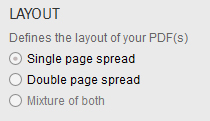
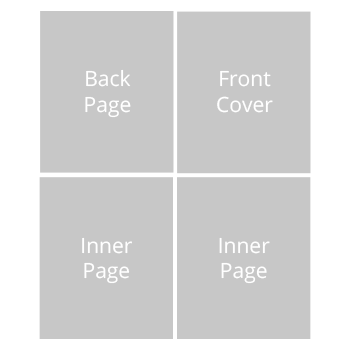
The software will automatically detect whether your PDF(s) is a single page format or mixture of both and change the settings accordingly. If your PDF is a double page spread format (every page shows side by side when viewed in Adobe Acrobat), you must then choose the ‘Double page spread’ option.
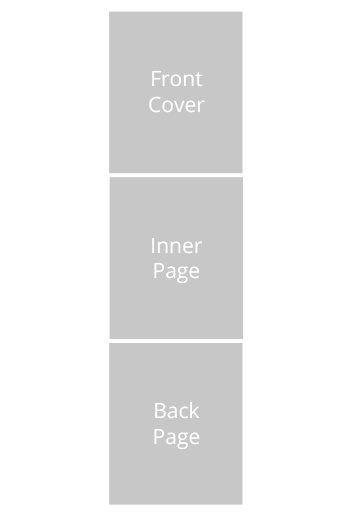
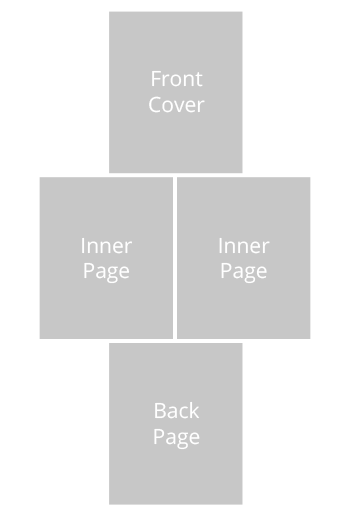
Below are how your PDF(s) might look when you open them within Adobe Acrobat:
Single page spread
Double page Spread
Mixture of both
Where the numbering starts is a different setting, on the Design tab’s Advanced section: How do I start page numbering after the cover?.