

You’ll end up with the new page sitting where the old one was, and the flipbook still available at the same web link.
You’ll need
- The flipbook project open at Content → Page Order.
- The PDF that holds the replacement page.
- The old page still in place if it carries videos or image galleries, so you can copy them across first.
Yes, this can be done under the Page Order section in the Content tab of the software.
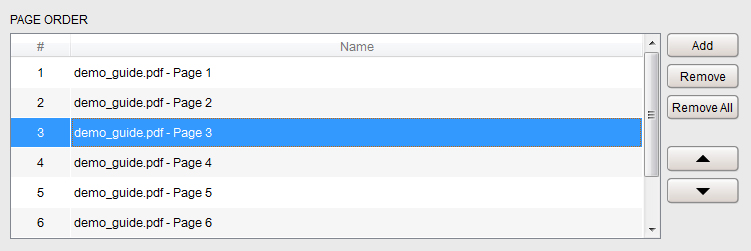
- Add the replacement. Click Add and, in the dialog that appears, locate the PDF holding the replacement page and click Open. The new page is added at the position you were in.
- Remove the old page. Click the old page to highlight it, then choose Remove.
- Build. Click Build in the top right corner of the software for the changes to take effect. Your Flipbook remains available at the same web link as before.
Clicking Remove All will delete all of the pages from your project. You can reorder your pages by clicking and highlighting one or more of them and then using the navigation arrows seen in the image above.
Quick tip — when replacing a page that already has interactive features added that you would like to keep such as videos or image galleries you can copy them from the old page and paste them on the new page before removing the old page from your Flipbook
If it doesn’t work
- The page lands in the wrong position. Highlight one or more pages and move them with the navigation arrows; a new page is added at the position you were in.
- Nothing changes after the swap. Click Build in the top-right corner of the software — the flipbook only picks the change up then.
- The web link moved. It does not: the flipbook stays available at the same web link as before.
- The new page lost its videos or galleries. Copy them from the old page and paste them onto the new one before removing the old page.