


The Rectangle element is a basic shape element used to create boxes, backgrounds, and layout containers on the page.
Adding a rectangle
Open the Add panel and insert the Rectangle element from the Elements list by clicking it or dragging it onto the canvas. It is available among the structure elements.
What a rectangle is for
A rectangle is a flexible placeholder element. Common uses include:
- Creating a colored or imaged box to frame other content.
- Adding a background shape behind text or other elements.
- Building simple layout containers on the canvas.
Editing a rectangle
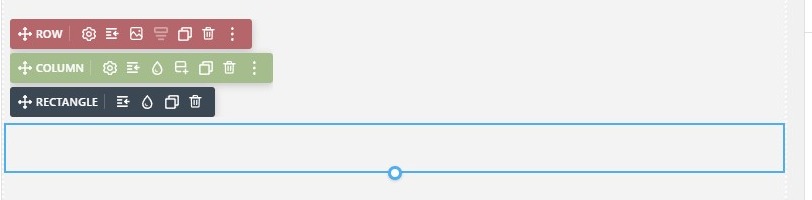
Select the rectangle to open the Properties panel. From there you can control its size, spacing, background, borders, and other appearance settings, just like the other elements.
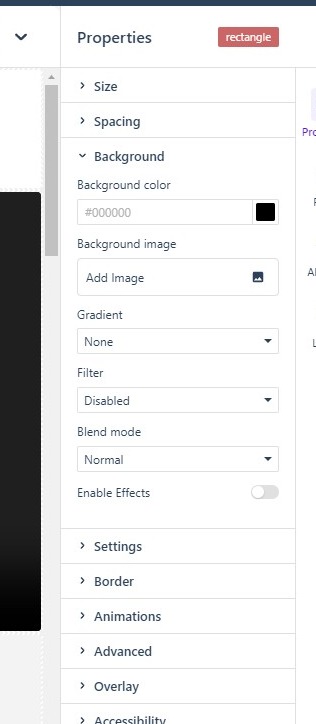
The Properties panel
Like every element, the Rectangle exposes the full Properties panel — Size, Spacing, Background, Settings, Border, Animations, Advanced, Overlay, and Accessibility — so you can control its dimensions, background, border, and other appearance settings in the same place as the rest of your elements.
In Flow
In Flow, the Rectangle element works the same way. Because Flow reflows the layout for smaller screens, rectangles used as containers or backgrounds may resize or reposition as the edition adapts, so check them in preview on desktop, tablet, and mobile.