


Text elements are the building blocks for the words on your page. They cover body copy and the headings that structure it, and they all share the same text toolbar and editing behavior.
Text and headings
The text family includes:
- Text — for body copy.
- Heading 1 through Heading 5 — for titles and section headers.
Each text element carries a Text Type that controls both its default look and its semantic meaning. Choosing the right type keeps your typography consistent and helps readers and search engines understand the structure of the page.
Adding a text element
Open the Add panel, find the text tool you want, and click it or drag it onto the canvas. A text element can be placed at the end of the page, or dropped into the exact spot you want.
Editing text directly
Once a text element is on the canvas, click it to edit the words directly where they sit. Text behaves like a WYSIWYG editor: you can type, format using the text toolbar, and paste in text from other sources. The formatting of pasted content is removed automatically, and the text is reformatted into the page’s predefined style. A text element’s tab also carries an AI icon that inserts generated copy straight into the element; Generate Text with the AI Text Generation Tool walks through it.
The Text Type
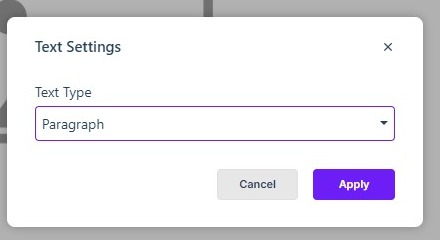
To change a text element’s type, select it on the canvas, click the Text Settings icon, and choose from the Text Type dropdown — Paragraph, Heading 1, Heading 2, Heading 3, Heading 4, or Heading 5.
Use Heading 1 for the main title of a page — there should normally be only one. Use Heading 2 for major sections, and Heading 3 to 5 for subsections beneath them. Use Paragraph for body copy.
The text toolbar

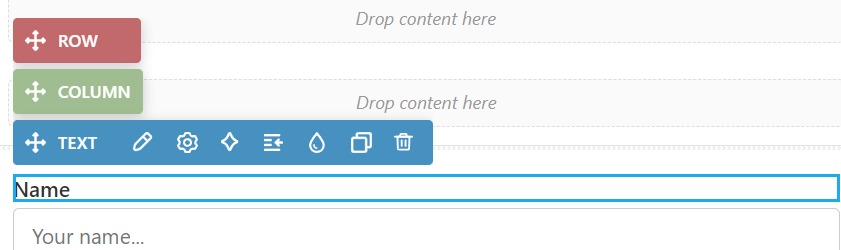
The floating text toolbar carries the everyday formatting controls: font family and font size, line height, letter spacing, copy, undo and redo, select all, bold, italic, underline, remove formatting, alignment, insert link, text color, and text background color. The three-dots control at the far right reveals additional controls such as subscript and superscript, numbered and bulleted lists, indent, a table insert, and text transform.
Font size and responsive text
Font sizes are expressed as percentages rather than fixed pixels. That keeps the text able to grow and shrink with the reader’s device, which matters most in responsive layouts. You can choose from the preset sizes in the dropdown or type in the percentage you need.
Spacing and line height
If you want a word to take up more of the text field — for headlines and similar uses — letter spacing is a useful tool, and it is also measured in percentages. The line height tool controls the space between each line, and it too is presented as a percentage, with a list of preset heights plus the option to type in the value you want.
In Flow
In Flow, text elements work the same way: the same text tools, the same Text Type options, and the same text toolbar. Because Flow reflows the layout for different screens, the percentage-based approach to font size, letter spacing, and line height is especially useful there — the text adapts as the edition resizes.