

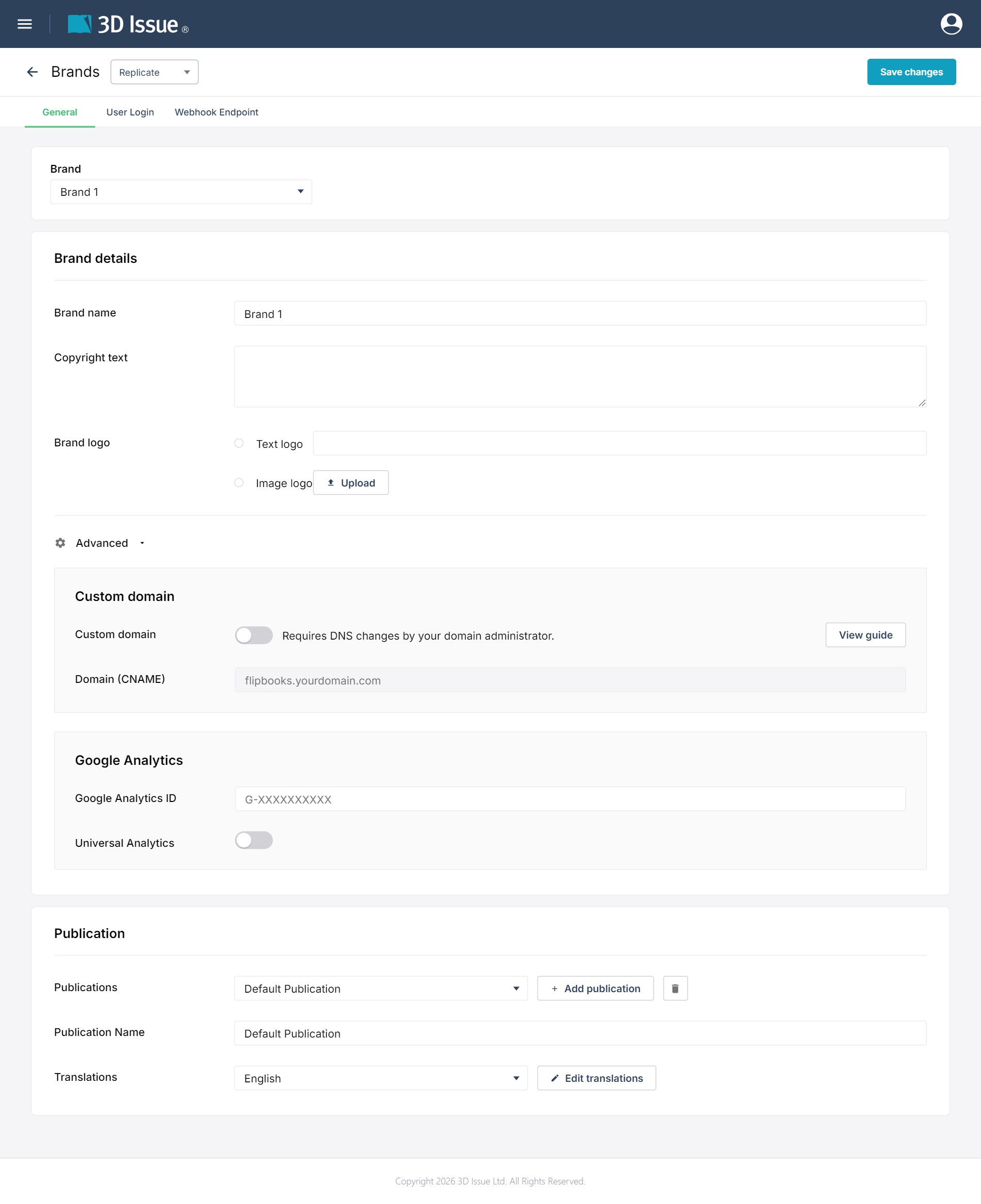
The Brands screen carries the brand settings, and the product selector at the top switches the view between Replicate, Flow, and Studio; open it from the user menu. The Replicate view is split across three tabs — General, User Login and Webhook Endpoint — and is shown here on the General tab.
Brand details
The Brand details card holds the identity fields for the brand:
- Brand name: the brand’s name (here “Brand 1”).
- Copyright text: the copyright text associated with the brand.
- Brand logo sets how the brand’s logo is supplied:
- Text logo: selected by default in this screenshot; type the logo text into the field beside it (empty in this screenshot).
- Image logo: choose this to upload a logo image; the Upload button beside it starts the upload.
Advanced
The Advanced section opens from its own heading and holds two cards, Custom domain and Google Analytics:
- Custom domain: the toggle that serves this brand from a domain other than the 3D Issue cloud; under it, the note that it needs DNS changes by your domain administrator.
- View guide opens the Set up a custom domain modal: create the CNAME, add it here, save.
- Domain (CNAME): a text field for entering your custom domain, with the placeholder
flipbooks.yourdomain.com. - Google Analytics ID: the brand’s measurement ID, in the GA4 form
G-XXXXXXXXXX. - Universal Analytics: the toggle that enables Universal Analytics for your Brand; on in this screenshot.
For more on masking the default domain, see Can I mask the cloud domain for my Flipbooks?; failures are covered in Why does domain masking fail?.
Publication
The Publication card holds the publication-group settings for the flipbook:
- Publications: a dropdown showing the current publication, with a + Add publication button to add another and a trash/delete button to remove one.
- Publication Name: the name of the publication the flipbook falls under in your library.
- Translations: a dropdown showing the current language, with an Edit translations button to translate the flipbook user interface into a custom language if needed.
User Login tab
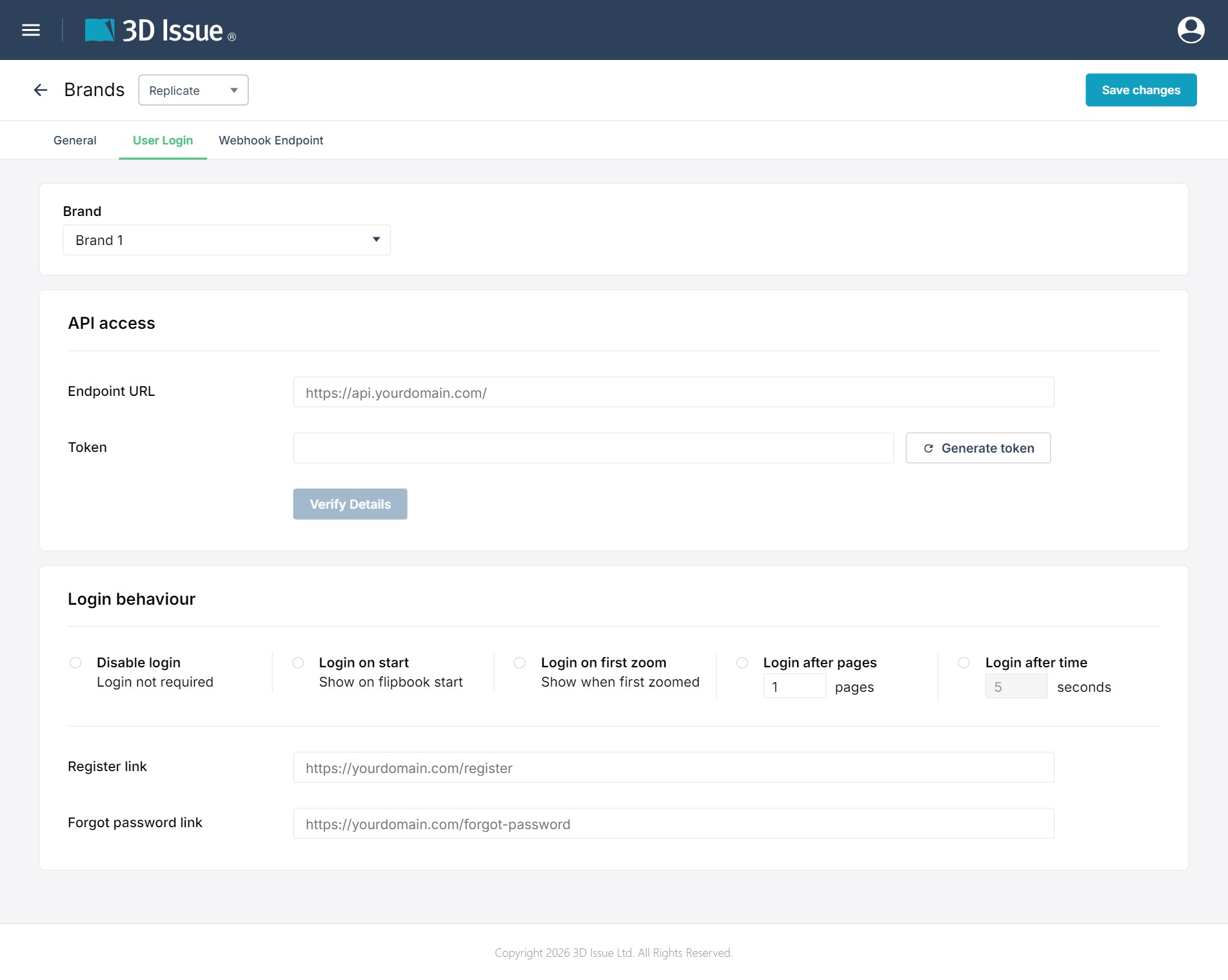
The User Login tab contains:
The API access card holds the settings for programmatic access to the flipbook:
- Endpoint URL: a text field with placeholder
https://api.yourdomain.com/. - Token: a text field, with a Generate token button beside it (the button shows a refresh/reload arrow and the text “Generate token”).
Below the Token row is a Verify Details button to check the API details.
The Login behaviour card controls when readers are asked to log in:
- Disable login: login not required.
- Login on start: show on flipbook start.
- Login on first zoom: show when first zoomed.
- Login after pages: show after a number of pages.
- Login after time: show after a number of seconds.
Below the radio options:
- Register link: where users should go to register for access to your publication.
- Forgot password link: where users can reset their password for access to your publication if required.
Webhook Endpoint tab
The Webhook Endpoint tab is the third of the Replicate tabs. Like General and User Login it opens on a Brand card, so what you set here belongs to the brand chosen in that card.
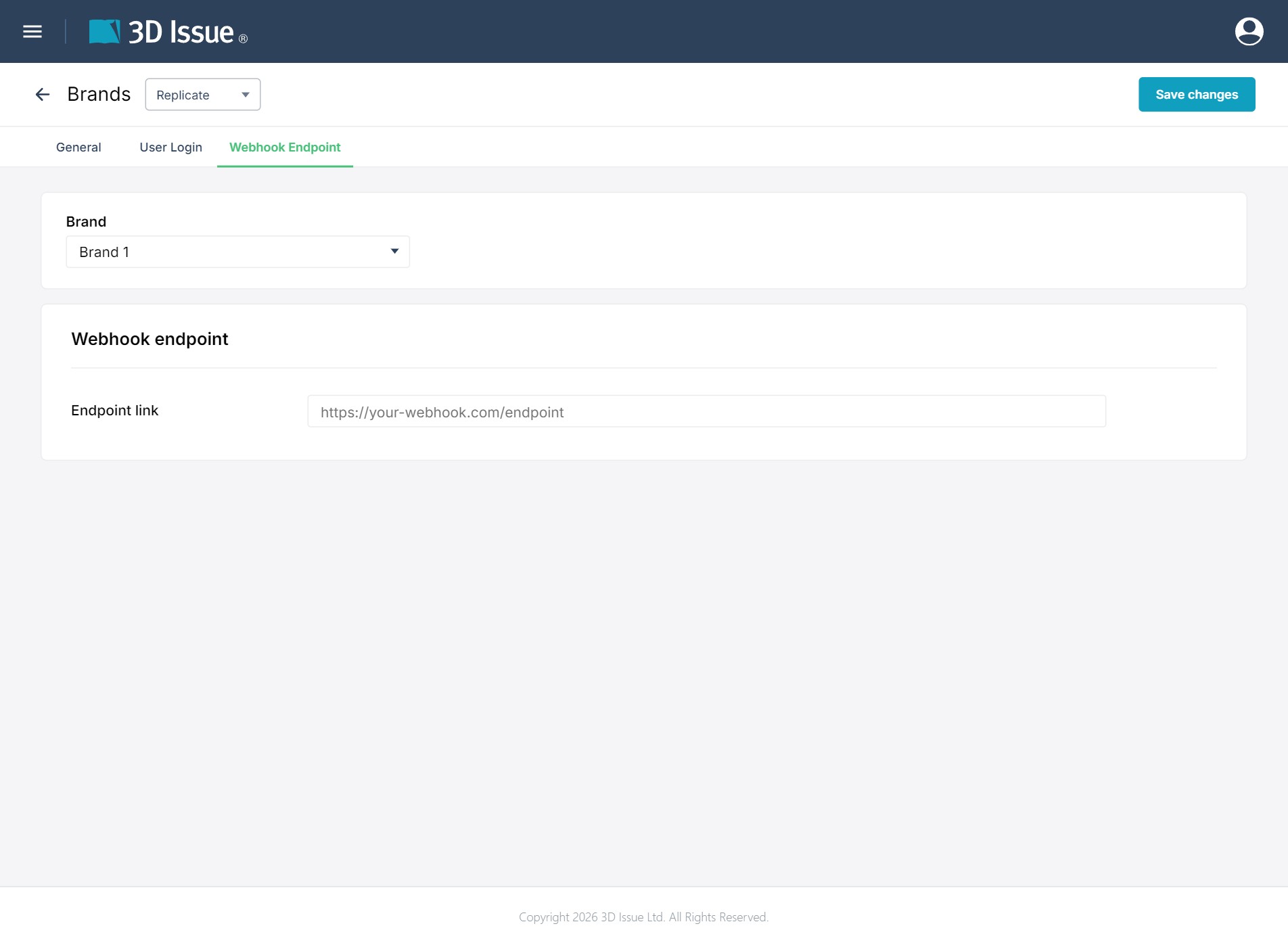
The tab carries one card, Webhook endpoint, and one field:
- Endpoint link: the address itself, with the placeholder
https://your-webhook.com/endpoint. It is empty on a new brand.
The card holds nothing else — no event list, secret or test button beside the field. Everything else about the Replicate brand stays on the General and User Login tabs.
What this screen does and doesn’t cover
- This screen sets the brand, publication, API access, and login behaviour for the Replicate product. It’s where you edit a Replicate brand’s name, copyright text, logo, custom domain, analytics, translations, API endpoint and token, and reader login behaviour, plus the webhook endpoint — across the General, User Login and Webhook Endpoint tabs.
- It doesn’t style the flipbook’s pages. Replicate flipbooks are a fixed replica of the source PDF; page-level design (rows, columns, responsive layout) is the Flow edition’s job, or Studio’s. The brand here brings your organization’s logos, colors, and fonts to the flipbook’s identity (see Managing Brands). What it changes is the flipbook’s identity on the dashboard and in the reader — not the page-level look.
- The Flow product has its own view of this screen. Switch the product selector to Flow and the same screen shows Flow’s branding and styling options instead — see Brand styling (Flow).
Assigning a brand to a flipbook
To give an existing flipbook a brand (or change it), open the flipbook tile’s ⋯ menu on the dashboard and choose Settings — the dialog holds the flipbook’s Brand and Publication fields. Pick the brand whose identity the flipbook should use; the Publication field sets the publication group the flipbook belongs to.