

Brands are managed centrally on the dashboard Brands screen (user menu → Brands), scoped by product with the selector at the top of the screen: switch between Replicate, Flow, and Studio to see each product’s brands. Create with Create brand, edit by picking one and choosing Edit Brand, and Save changes when done. Creating one from scratch is walked step by step in Creating a Brand with the Brand Wizard (e-348).
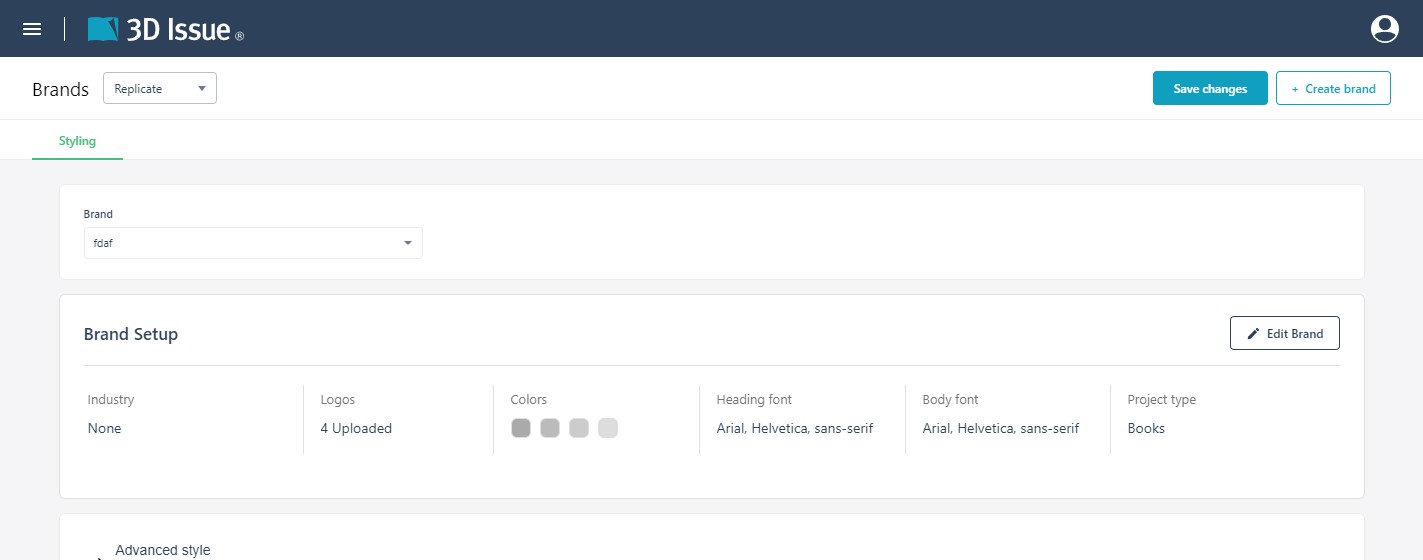
The brand list and Save changes work the same way for every product; which cards sit under the list depends on the product. What a brand controls is a different story per product, and it’s worth being clear about, because the word means two quite different things across the product family:
Studio: a brand is a set of design-system styles
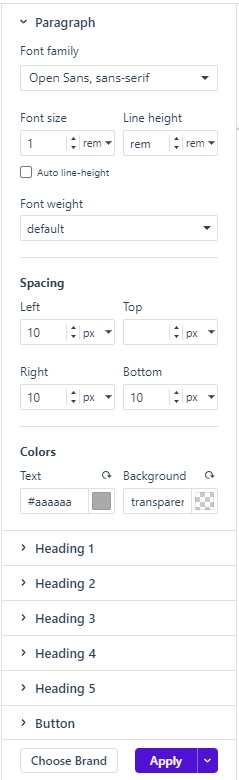
A Studio brand is its styles: the design-system defaults a project is built with. In the editor, the Brand rail (left side) holds the per-type styles: paragraph and heading typography (font family, size, line height, weight), spacing, text and background colors, button styles, and more. Pick a brand with Choose Brand, apply it with Apply: new elements start from its defaults, and unstyled existing elements take them on. Per-element styling on the canvas overrides the brand; the brand is the baseline every element starts from. The brand’s four logo variants are what the Logo element draws on (see Working with Images, Galleries, and Logos).
Flow: a brand styles the responsive edition
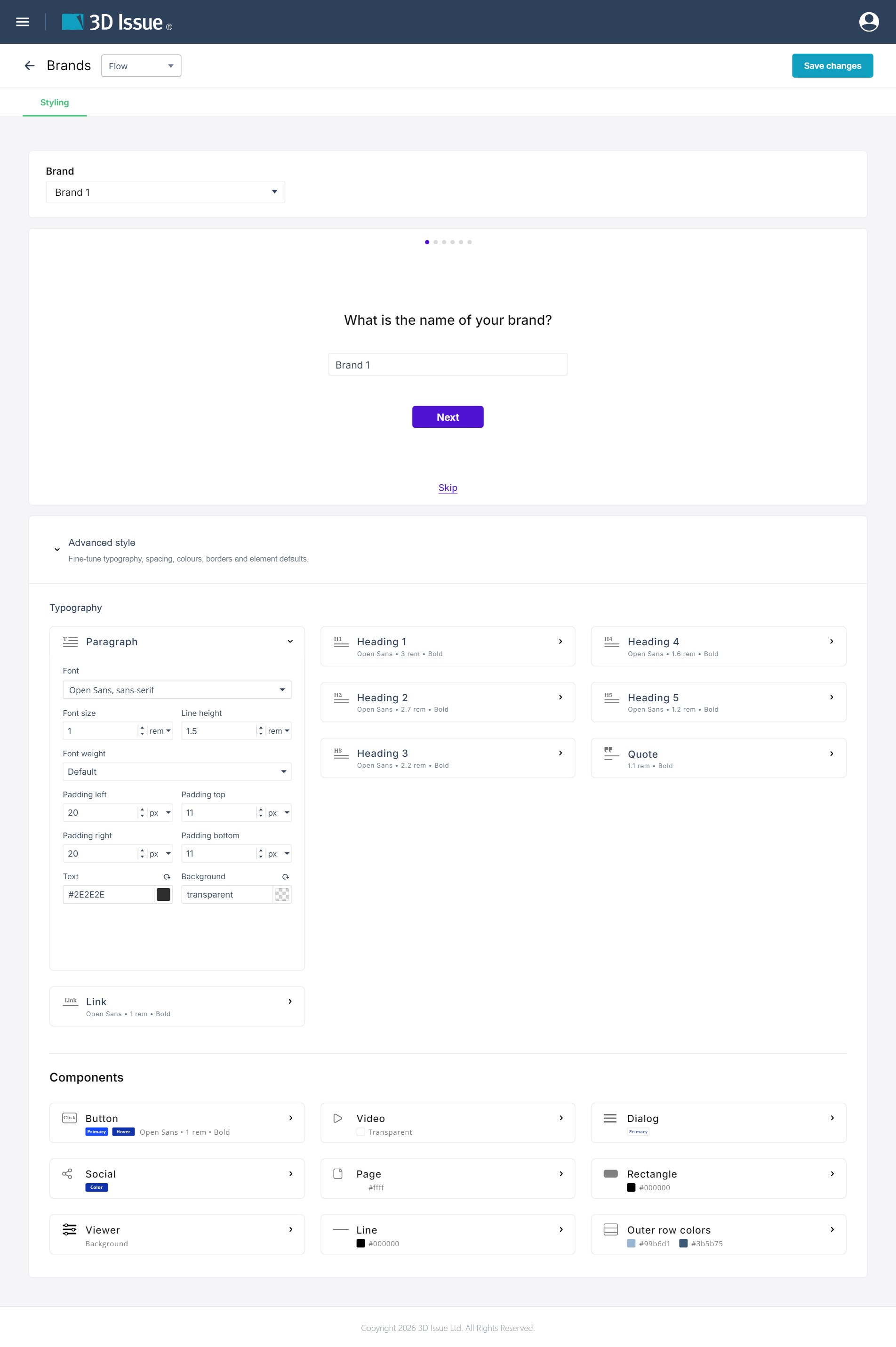
A Flow brand is its styles too, but they style the Flow edition, the responsive text view readers can switch into from a flipbook (see How is Flow presented to end-users?). The Brands screen’s Styling tab holds the Advanced style section: Typography per text type (paragraph, link, Heading 1–5, quote, each with font, size, weight) and Components (button, video, dialog, social, page, rectangle, viewer, line, outer row colors). These are the defaults the Flow edition’s reflowed layout is typeset with.
Replicate: a brand is publication identity and settings, not styles
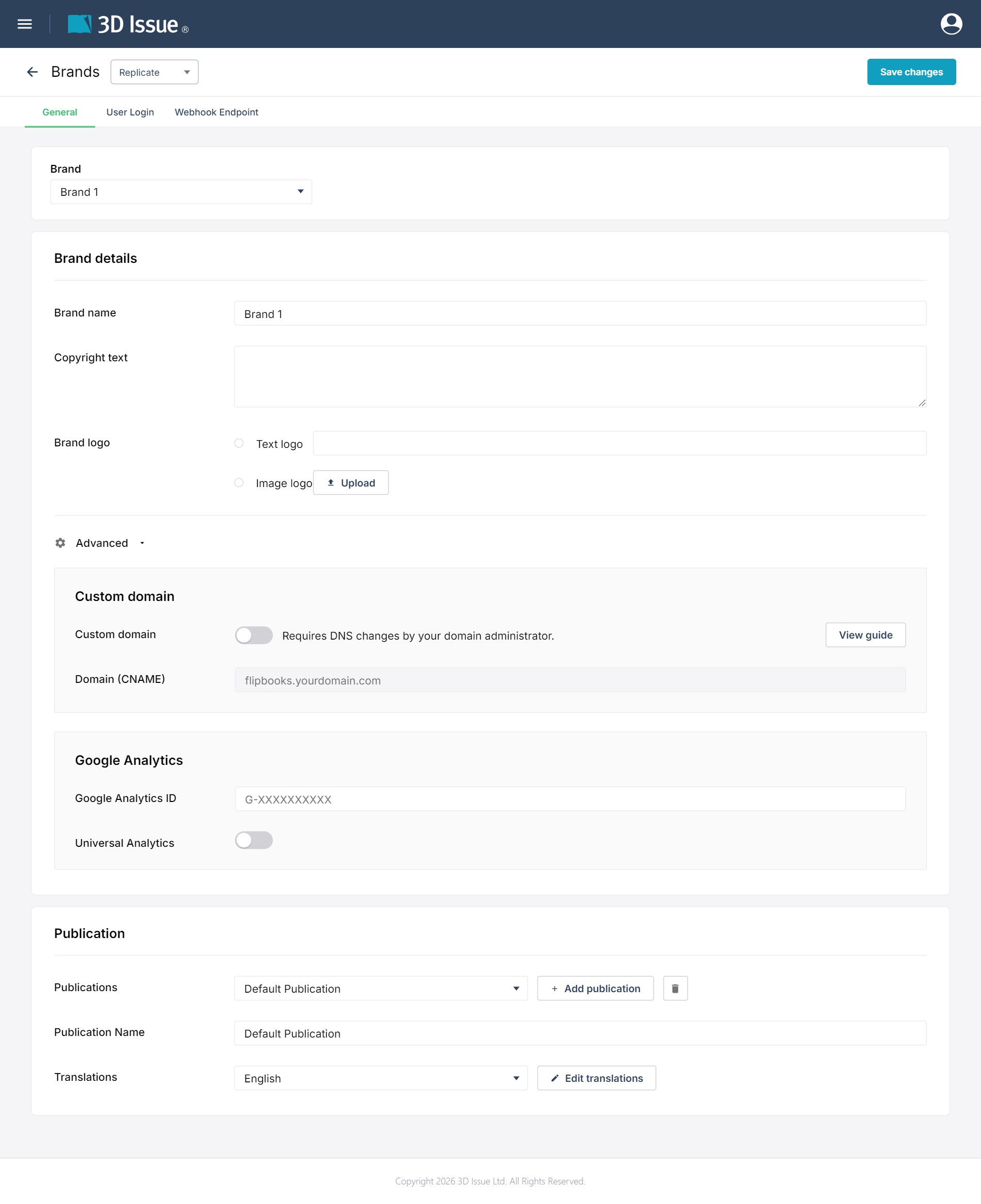
A Replicate brand looks nothing like the others on screen, and that’s the point. A Replicate flipbook is a fixed replica of its PDF, so there is nothing for a style system to style. Instead the brand is where the publication’s identity and operational settings live, across two tabs:
- General tab — Brand details (name, copyright text, logo as text or uploaded image), the Advanced section (custom domain + CNAME, Google Analytics ID; this is where tracking goes, see Google Analytics 4 setup (Replicate), and the Universal Analytics toggle), and the Publication card (the publications group, its name, and translations of the reader interface).
- User Login tab — API access (endpoint URL, token) and the reader login behaviour (login on start / first zoom / after pages / after time, register and forgot-password links).
Assign the brand (and a publication group) to a flipbook from its dashboard tile’s ⋯ → Settings dialog. The full walkthrough is in Brand settings (Replicate).
Only Replicate carries the identity fields
The identity block does not carry over. The Flow and Studio brand views hold styles, and neither shows the Advanced section’s custom domain or Google Analytics ID fields: those live on Replicate’s General tab alone. What Flow and Studio share is the style vocabulary — Studio’s brand view and Flow’s Advanced style section both fine-tune typography and element defaults. The hard distinction is: Replicate = identity and settings only, no style system; Flow and Studio = style systems, no identity fields.
Rules of thumb
- Changing a logo, color, or font? That’s a Flow or Studio brand edit (whichever product’s styles you want to update). It cannot change a Replicate flipbook’s pages: those are fixed PDF pages.
- Changing tracking or the reader domain? That’s brand-level in Replicate. See Google Analytics 4 setup (Replicate).
- Translation of the reader interface? Replicate brand’s Publication card (Edit translations).