

You’ll end up with the publication running inside your own page, in an iframe or a lightbox, at a size that keeps the page-turn view usable.
You’ll need
- The publication’s published URL.
- Edit access to your page’s source HTML, or to its code block in your CMS.
- The lightbox library’s CSS and JS, if you are taking the lightbox route (the walkthrough uses Fancybox 3, which also needs jQuery).
A published publication is a self-contained web page at its own HTTPS URL, which means your website can carry it like any other page: in an iframe, opened from a link as a lightbox pop-up, or simply linked with a ?page=N deep link. The distribution map (direct link, tile share, reader-side share) is in Publishing, sharing & embedding your flipbook; this article is the embed markup itself, for when the publication should live inside your page.
The iframe embed
Paste this into the source HTML of your page, meaning the code/source view of your CMS (WordPress, Drupal, or whatever hosts the site), replacing the src with your publication’s URL:
<iframe src="https://your-publication-url/" width="1280" height="720" allowfullscreen style="max-width:100%;"></iframe>
- Size — width and height in pixels give a fixed frame; use percentages (e.g.
width="100%") withstyle="max-width:100%"to let the embed flex with the reader’s browser window. Give the flipbook real room: a frame that’s too small cramps the page-turn view. - Use
https://— if your site is secure, the embed source must be too: modern browsers block mixed http:// content, and every publication URL is published as https. allowfullscreen— without it, the reader’s Fullscreen control can’t expand the publication beyond the frame; include it so readers keep the whole reader experience.- Centering wrappers (
<div align="center">, spacing) are your page’s business; the iframe itself needs only the attributes above. If you’re migrating an old embed, note theframeborderattribute some older recipes used is obsolete in modern HTML; drop it.
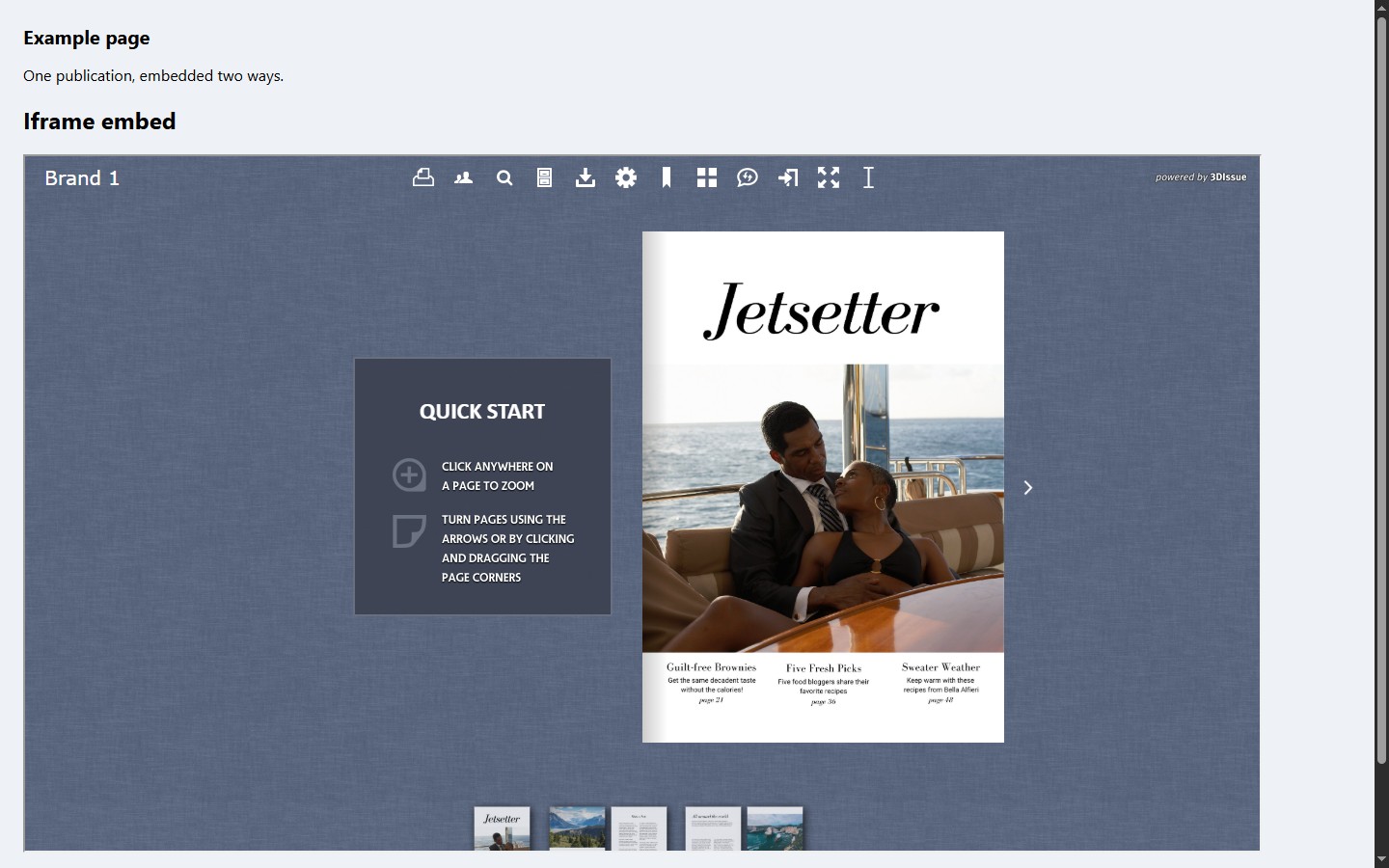
Embedded or not, the publication is the same URL: deep links (?page=N, see Linking to Another Page (Go To Page)) work inside an embed, and republishing updates the embedded reader along with the direct link.
Opening in a lightbox
Instead of a permanent frame, you can have a link or button on your page open the publication in a pop-up overlay: a lightbox. Any lightbox library that can open an iframe does it; the walkthrough below uses Fancybox, and its recipe carries:
- Load the library’s CSS in your page head, then jQuery and the library’s JS just before
</body>. The run behind the frame above used Fancybox 3.5.7 (cdn.jsdelivr.net/npm/@fancyapps/fancybox@3.5.7/dist/jquery.fancybox.min.css, then…/jquery.fancybox.min.js) with jQuery 3.6.0 ahead of it. Fancybox 3 needs jQuery: a page that skips it fails with$ is not defined. - Initialize it for iframe content with
$('[data-fancybox]').fancybox({ iframe: { preload: false } }), Fancybox 3’s API, which later versions replace with their own bind call. - Mark your link:
<a data-fancybox data-type="iframe" href="your-publication-url">Read the magazine</a>; thedata-type="iframe"value is what makes the flipbook behave. - Size the overlay with the library’s CSS so the publication gets room:
.fancybox-content { width: 95%; height: 90%; }nearly fills the browser window; anything smaller cramps the page-turn view. Size the content box, not a combined selector: Fancybox gives the slide and the content different classes, so a rule written against both matches nothing.
For a Flipbooks Desktop export rather than a hosted publication, Opening flipbooks from a lightbox covers the URL the overlay should open and what carries over from the reader.
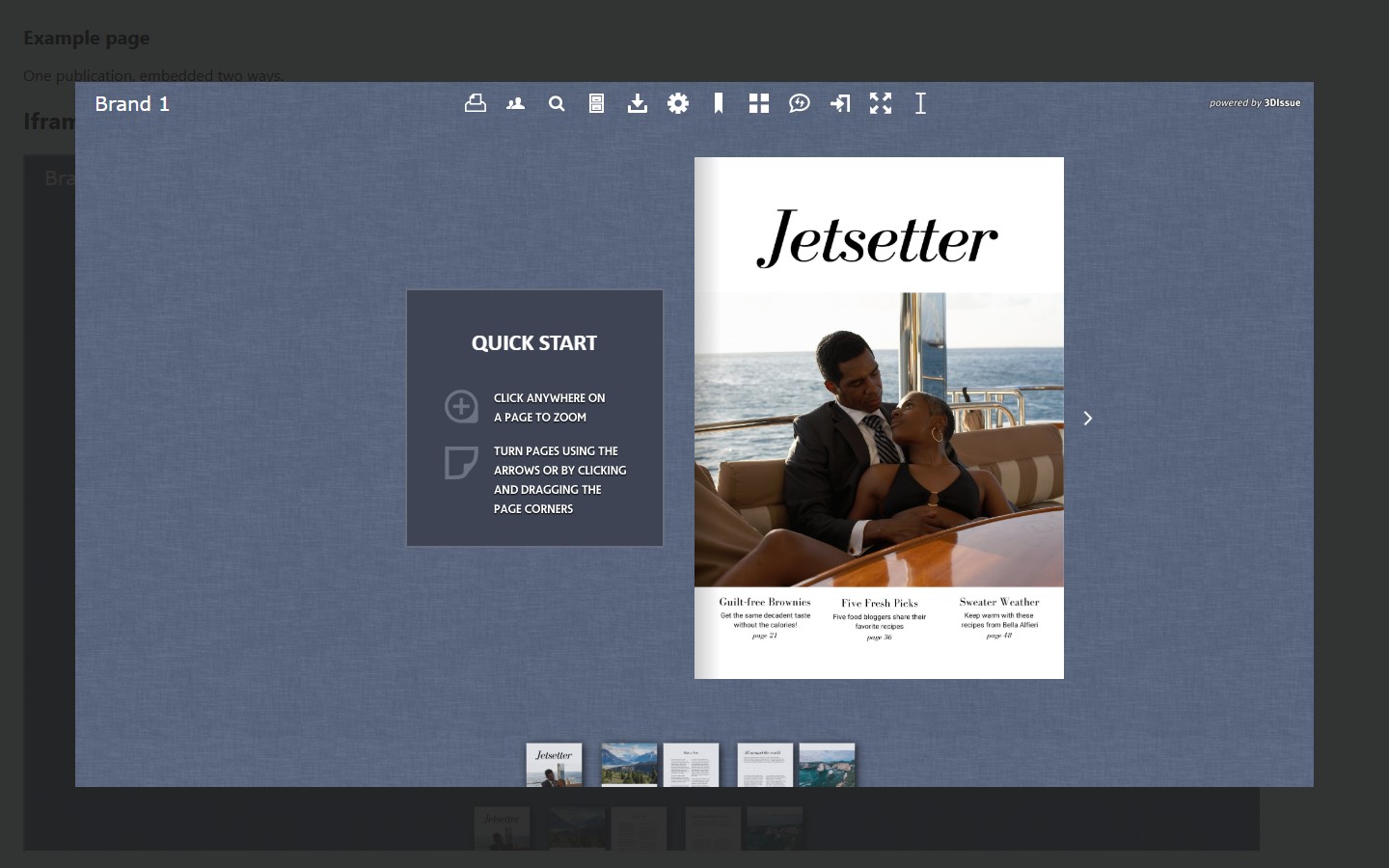
The iframe recipe renders the full reader (toolbar, page-turn, thumbnails, Quick Start hints) inside the frame at both fixed-pixel and percentage sizes, and the Fancybox lightbox recipe opens the same publication as an overlay (pages turn normally inside it). Fancybox 3.5.7’s generated iframe carries allowfullscreen and allow="autoplay; fullscreen" (the 3.4.1 build the old recipe pinned sets only allowfullscreen), so the reader’s Fullscreen control keeps working inside the lightbox exactly as standalone. If a lightbox library omits those attributes, fullscreen is what breaks.
Choosing between linking, embedding, and a lightbox
- Direct link — the publication opens in its own tab at full size; best for email, social posts, and QR codes. Deep links send readers to the exact page.
- iframe embed — the publication is part of your page and always visible; best for a homepage feature or a permanent reader’s panel.
- Lightbox — your page stays clean; the publication opens over it on click; best for a “read the issue” call-to-action.
Intranets and hosting questions
There is no separate “intranet publish” path in the current cloud products: a publication is embeddable anywhere a web page can host an iframe, and the old “Publishing Flipbooks to your Intranet” guide was a desktop-era contact page rather than a workflow. If your question is really about where the files live (self-hosting the publication bundle on your own servers), that’s a sales conversation, not a publishing setting; see Where are my publications hosted? for what the cloud hosting includes. To take an embedded publication down, take the publication offline, and the embed goes dark with it (see Taking a publication offline).
For every way to get the link out, see Publishing, sharing & embedding your flipbook; for how the reader behaves once embedded, see the settings-panel articles via The reader experience: what readers see & how they navigate, or the iFrame launch-button half of it directly in Advanced settings.
If it doesn’t work
- The frame is blank. Check the source: your page must load it over
https; browsers block mixedhttp://content, and every publication URL is published as https. - The reader’s Fullscreen control does nothing. The iframe is missing
allowfullscreen; Fancybox’s generated iframe carriesallowfullscreenandallow="autoplay; fullscreen", and a hand-written iframe needs them written in. - The embed is cramped. The frame is too small for the page-turn view; use percentages (e.g.
width="100%") withstyle="max-width:100%"so it flexes with the window. - A lightbox link opens as a plain page. The link is missing
data-fancyboxanddata-type="iframe"; the second attribute is what makes the flipbook behave. - An old embed behaves oddly. If you migrated an old recipe, drop
frameborder: it is obsolete in modern HTML.