

Flipbooks are digital-first, but paper still happens: handouts for a trade-show table, an order form at a front desk, a chapter for the bag. Replicate ships a Print control in the reader for exactly this: readers pick the spreads they want, and the browser’s own print flow does the rest. This article covers the control from both sides: what readers see, and the setting that shapes print quality.
The reader’s Print control
Print lives on the reader’s toolbar (first button in the default order). It is gated by the settings panel’s Features → Print toggle, which is on by default — see Features settings. Toggle it off (and republish) to take printing away from readers; use Edit Feature Order in the same section to reposition the button.
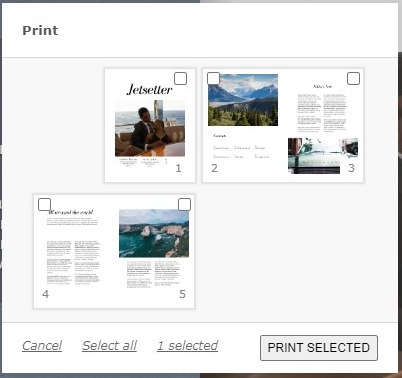
Clicking Print opens the print dialog:
- Per-spread selection — the dialog shows a checkbox thumbnail per spread: the cover on its own, then the pages two-up as they read on screen. Readers tick what they want; Select all ticks every spread, and a “N selected” counter keeps the running total.
- Print Selected hands the selection to the browser; a “Transferring to browser for printing” row shows the page count as it goes, and the browser’s standard print dialog takes over, printing to paper or saving as a PDF.
- Cancel and the header ✕ close the dialog; Escape does not.
Print quality: the Rasterize Printing setting
If printed pages come out wrong (content missing, drawn incorrectly, or garbled), the usual cause is the printer or browser failing to interpret the page content directly. The fix is the settings panel’s Advanced → Rasterize Printing toggle (off by default): it pre-renders each page as an image before handing it to the browser, so the printer works from fixed pictures instead of live page content. Change it in the editor and republish (see Publish & share your first flipbook) for it to reach the reader.
Print problems such as “Some of my pages do not print correctly” are handled by this one toggle, documented here instead of on a separate page.
What printing doesn’t cover
- Print is not a PDF export — it prints pages through the browser, not the source PDF. For handing over the publication file itself, the reader toolbar’s separate Download control is the route (also Features-gated; see The reader experience: what readers see & how they navigate).
- Interactivity stays behind — links, video, and hotspots don’t carry onto paper; only the page content does.
For the toggles behind the toolbar, see The reader experience: what readers see & how they navigate.