

You’ll end up with a new project carrying the pages you kept from the first one, with the original untouched.
You’ll need
- The project you want to reuse, opened in Studio.
- A name for each layout you save.
- A name and a category, if you copy the whole project as a template instead.
Need a second copy of a project — to use an existing design as a starting point, to try a risky redesign, or to hand a finished issue to a colleague as a base? Studio has no one-click Duplicate button. The closest single step is Save as Template in the Studio menu: it saves the open project as a template, pages and styling included, which the create-project flow offers under Use a template. The project itself stays where it was. For a single page carried into a project you are already working on, saving it as a layout is still the way.
Copy the whole project as a template
- Open the project you want to copy and choose Save as Template from the Studio menu.
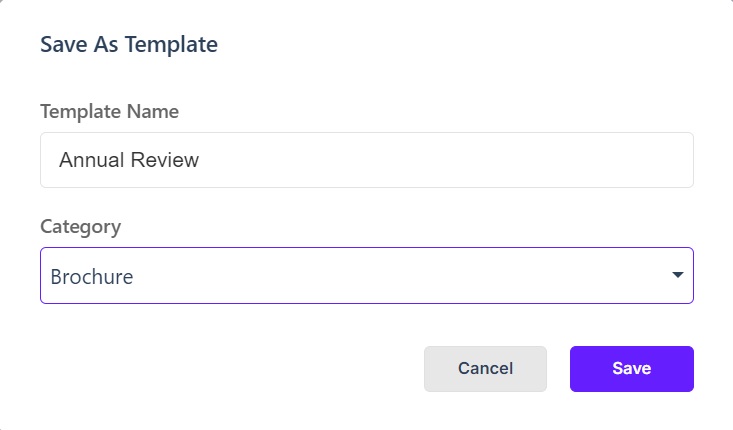
- Type a Template Name and pick a Category: Brochure, Magazine, Annual Report, Newsletter, Catalog or Presentation. Save stays greyed out until both are set.
- Click Save. The project stays in your list unchanged; the template is what the next step starts from.
- Create a new project and choose Use a template: the template is in the gallery you choose from, filed under the category you gave it.
A template you no longer need is removed from the gallery with the delete control on its card, which asks you to confirm before it goes.
Save the pages you want to keep
- Open the project you want to reuse, on the page you want to carry over.
- Click the main Studio menu (top-left of your screen) and choose Save Page as Layout.
- Give the layout a name and choose the brand to apply, then save it.
- Repeat on each page you want to keep. The saved layouts sit in the Add panel’s Layouts section (see Working with Blocks, Layouts, and Templates).
Place them in a new project
- Create a new project (see Creating a New Studio Project).
- Open the Add panel and choose Layouts, then place the layout for the page you are building — a layout replaces everything currently on that page.
- Repeat page by page, then edit the content as required.
The new project is independent: nothing you change in it affects the original, and it starts unpublished, earning its own link when you publish it (see Publishing and Sharing Your Studio Project).
Reusing a Replicate flipbook’s design
Replicate projects don’t carry a template system: to rebuild a similar flipbook, create a new project from the same source PDF (see Create your first flipbook from a PDF) and re-add the interactivity you need — the tools are mapped in Editing your flipbook & adding interactivity. Keep the original project until the new one is published, then delete it if you’re done with it — deleting removes its publication and its link (see Project settings, rename & delete (Replicate)).
Reuse something smaller instead
If only part of a design is worth carrying forward, save a row or section as a Block, or keep pre-built arrangements as Layouts (see Working with Blocks, Layouts, and Templates) — and let a saved Brand reapply fonts, colors, and logos to any new project (see Brands in Studio).
If it doesn’t work
- Save is greyed out in the Save As Template dialog. Both fields are required — a template name and a category — and the button enables once each has a value.
- You are looking for a Duplicate button. Studio has none: Save as Template starts a new project from a template rather than adding a copy beside the original, and carrying single pages is still done with layouts.
- The project is a Replicate flipbook. Replicate has no template system — start a new project from the same source PDF and re-add the interactivity you need.