

You’ll end up with a form the reader can fill in without leaving the flipbook.
The Form tool opens a form in a pop-up inside the flipbook (an order form, an RSVP, a reader survey), collected without the reader leaving the page. It works like Opening a Web Page in a Pop-up; the dialog takes any form URL, so a form hosted anywhere works.
You’ll need
- The flipbook open in the editor, on the page the form opens from.
- A form that already exists at a URL (in Google Forms or your own tool), and its share link.
- Create your form (Google Forms works well: questions, validation, and response handling all live there) and copy its share link.
- Click Form on the toolbar.
- Draw a box over the area that should open the form.
- Paste the form’s link into the dialog and save.
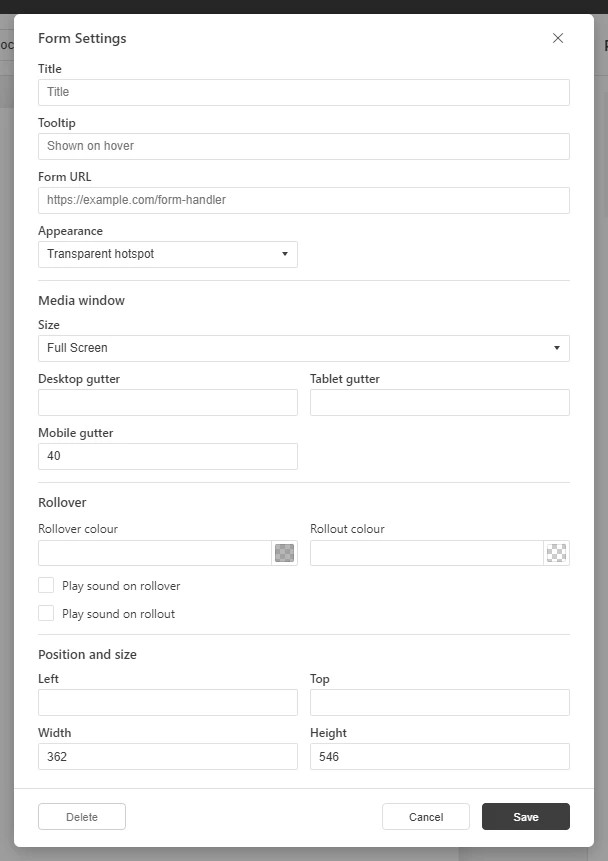
Submissions land wherever your form provider sends them — a Google Forms response sheet, say — not in the publication. For a form built into the page design rather than popped over it, that is a Studio project; see Working with Tables and Forms.
If it doesn’t work
- Nothing appears on the page. These tools create hotspots, which are invisible unless hotspot markers are switched on — the area is clickable either way (see Linking to Another Page (Go To Page)).
- The form accepts input but nothing arrives. Submissions go to the form provider, never to the publication, so a form with no working destination still appears to work.
- Nothing has changed on your live link. Edits reach readers only when you publish again — see Can I edit my flipbook after publishing?.