

You’ll end up with a page from another site opened in a pop-up, with the flipbook still behind it.
The Web Page tool opens a provided link in a pop-up window inside the flipbook — the reader stays in your publication while viewing the page. Use it for a booking form, a store’s product page, or any site page that completes the story the printed page starts.
You’ll need
- The flipbook open in the editor, on the page the pop-up opens from.
- The URL of the page, on a site that allows being framed (see below).
Adding a web page pop-up
- Click Web Page on the toolbar.
- Draw a box over the area that should open the page.
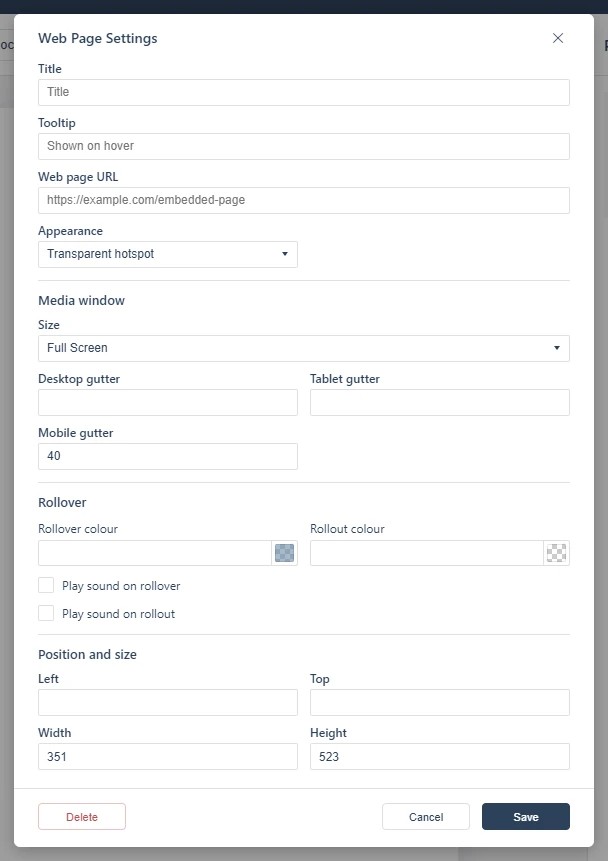
- Enter the URL in the dialog and save.
Sizing the pop-up
The pop-up’s Size defaults to Full Screen, and Desktop, Tablet, and Mobile gutter values set how much breathing room shows around the page on each device class — larger gutters show more of the flipbook around the page, zero fills the viewer. Aim for a size that keeps the pop-up readable without hiding the page that launched it.
Some sites refuse to render inside another page’s pop-up (a browser security rule); if a page shows blank, link to it normally with Adding a Web Link instead. For form-shaped content, see Adding a Form Pop-up, which is optimized for exactly that.
If it doesn’t work
- Nothing appears on the page. These tools create hotspots, which are invisible unless hotspot markers are switched on — the area is clickable either way (see Linking to Another Page (Go To Page)).
- The pop-up is blank. Some sites refuse to render inside another page’s frame, which is a browser rule and not something the tool can override. Link to those normally instead — see Adding a Web Link.
- Nothing has changed on your live link. Edits reach readers only when you publish again — see Can I edit my flipbook after publishing?.