

You’ll end up with a product image or listing that takes the reader straight to your store’s product page or cart.
The Shopping Cart tool turns a product image or listing in your catalog into a buyable link: clicking it takes the reader straight to the product’s page or cart so they can act on what they are looking at, without hunting for it.
You’ll need
- The flipbook open in the editor, on the catalog page with the product.
- The product page URL and the cart URL from your store.
Adding a shopping cart link
- Click Shopping Cart on the toolbar.
- Draw a box over the product photo or listing that should be buyable.
- Paste the product page URL and the cart URL into the dialog and save.
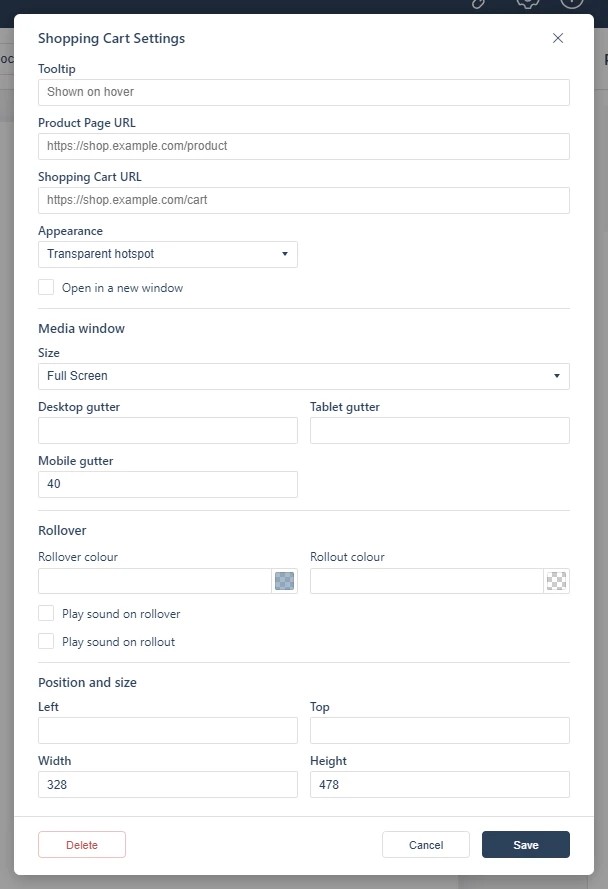
In the dialog
The dialog takes two addresses: Product Page URL, the product’s own page in your store, and Shopping Cart URL, the cart that opening the link comes back to. Tick Open in a new window if the cart should not replace the flipbook view. There is no product-ID field; link by URL.
The three e-commerce mechanisms
- Shopping cart links: this tool, where a product area opens a cart listing (see also Adding a Web Link for plain product pages).
- Product web links: hotspots or buttons over products that open the product page on your own site.
- Pop-up product pages: a product page opened inside the flipbook in a pop-up; see Opening a Web Page in a Pop-up.
Codes printed in the catalog (SKU numbers and similar) can be detected and linked automatically via custom pattern matching; contact support to have a pattern configured (see Adding a Web Link).
If it doesn’t work
- Nothing appears on the page. These tools create hotspots, which are invisible unless hotspot markers are switched on — the area is clickable either way (see Linking to Another Page (Go To Page)).
- The cart opens without the product in it. The two addresses do different jobs: the product page identifies the item, and the cart URL is where the reader returns; neither carries an item id.
- Nothing has changed on your live link. Edits reach readers only when you publish again — see Can I edit my flipbook after publishing?.