

You’ll end up with a tappable number that starts a call on a phone or hands the number to a calling app on desktop.
The Telephone tool places a tap-to-call link on the page. On phones and tablets it starts a call to the number you specify; on desktops with a calling app installed (Skype, FaceTime, and similar), it hands the number to that app.
You’ll need
- The flipbook open in the editor, on the page the number appears.
- The number, and the country it should be dialled from.
- Click Telephone on the toolbar.
- Draw a box over the phone number or “Call us” badge that should be tappable.
- Choose the country code and enter the number in the dialog, then save.
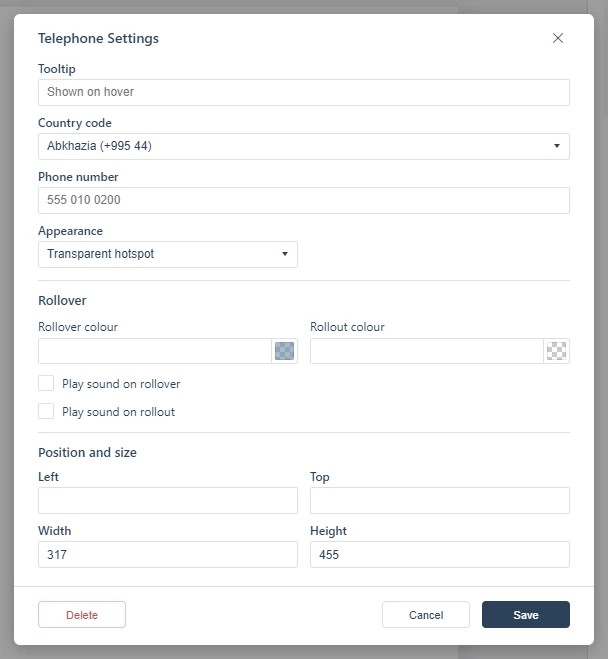
Pick the country from the Country code dropdown and type the number’s digits into Phone number — the dialog combines them, so the link works for readers dialing from anywhere. Phone numbers printed in the source PDF are detected and linked automatically when the flipbook is created (see Adding a Web Link); use the Telephone tool to place one deliberately or over artwork. For written enquiries rather than calls, see Adding an Email Link.
If it doesn’t work
- Nothing appears on the page. These tools create hotspots, which are invisible unless hotspot markers are switched on — the area is clickable either way (see Linking to Another Page (Go To Page)).
- The call does not start. The dialog combines the country code and the number into one link, so a number typed with its own country code ends up carrying it twice.
- Nothing has changed on your live link. Edits reach readers only when you publish again — see Can I edit my flipbook after publishing?.