

You’ll end up with a clickable area that downloads a file to the reader’s device.
The Download tool links a file to the page. When the reader clicks it, they are prompted to download the file — a spec sheet, a coupon, an order form, the printable version of an ad.
You’ll need
- The flipbook open in the editor, on the page the button sits on.
- A URL for the file, hosted somewhere you control.
- The file itself, kept small enough to download comfortably on mobile data.
Adding a download
- Click Download on the toolbar.
- Draw a box where the download control should sit, such as over a “Get the PDF” badge or beside the article it supplements.
- Paste the file’s address into the dialog’s Download URL field and save.
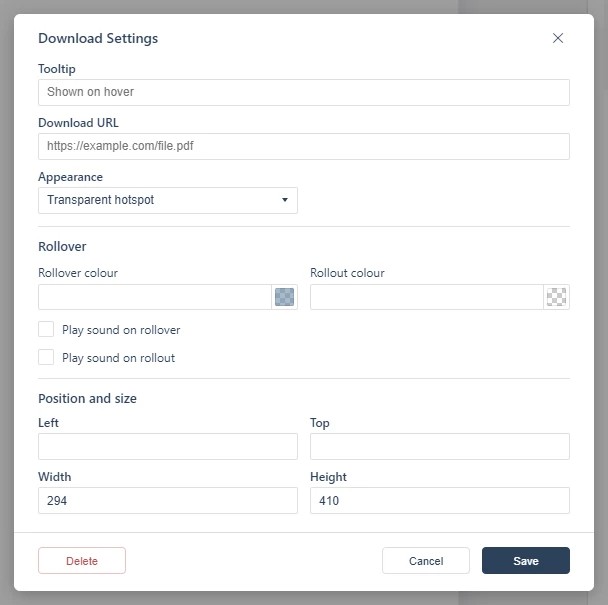
Host the file at a URL you control (your site or the media library) and keep it small enough to download comfortably on mobile data. Content that should open inside the flipbook instead of downloading belongs in Opening a Web Page in a Pop-up or Adding a Web Link.
If it doesn’t work
- Nothing appears on the page. These tools create hotspots, which are invisible unless hotspot markers are switched on — the area is clickable either way (see Linking to Another Page (Go To Page)).
- The click opens the file instead of downloading it. The download behavior comes from the browser’s handling of the file type at that URL, not from the tool — a PDF at
https://will often display rather than save. - Nothing has changed on your live link. Edits reach readers only when you publish again — see Can I edit my flipbook after publishing?.