

You’ll end up with video that plays on the page, in the reader’s browser, without leaving the flipbook.
The Video tool puts moving footage on the page — a product demonstration, a trailer, a walkthrough that the printed page can only point at.
You’ll need
- The flipbook open in the editor, on the page the video belongs to.
- A video file to upload, or the URL of a hosted video.
- Click Video on the toolbar.
- Draw a box where the video should sit.
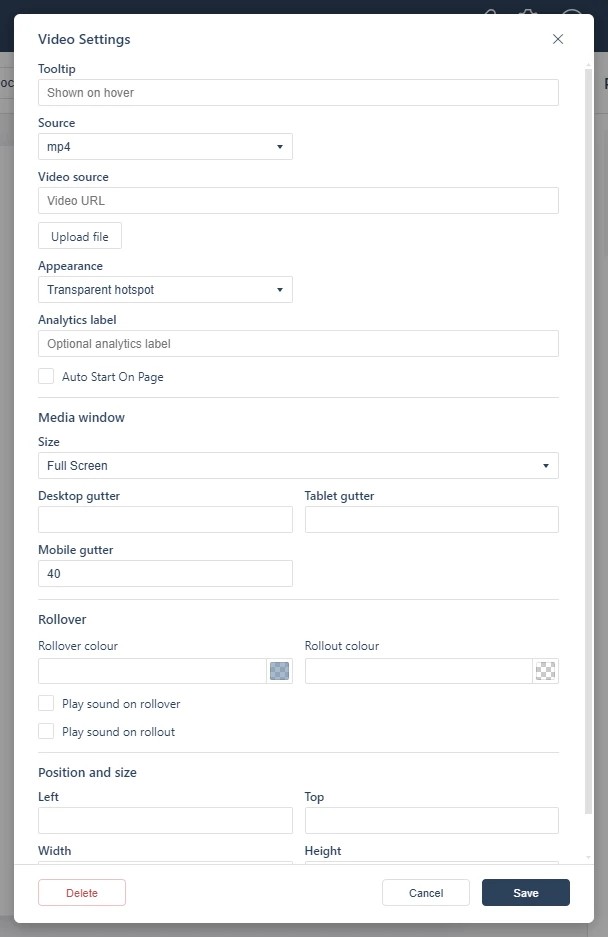
- In the video dialog, choose the Source — upload a file or paste a video URL — and set any options, then save.
Appearance
The Appearance dropdown sets how the video presents on the page — Transparent hotspot by default, with the alternative presentations offered in the same dropdown.
Options
- Auto Start On Page: start playing as soon as the page appears, without waiting for a click.
- Analytics label: a label that makes this video easier to isolate in your analytics(see Publish & share your first flipbook).
For HTML5 animation files rather than video, see Adding an Animation; for embedding video in a Studio project, see Embedding a Video in Studio.
If it doesn’t work
- Nothing appears on the page. These tools create hotspots, which are invisible unless hotspot markers are switched on — the area is clickable either way (see Linking to Another Page (Go To Page)).
- The video does not play. A URL source depends on the host serving a file the browser can decode; an upload avoids both that and the host’s own restrictions.
- Nothing has changed on your live link. Edits reach readers only when you publish again — see Can I edit my flipbook after publishing?.