

You’ll end up with a clickable area that opens the reader’s mail application with your address already filled in.
The Email tool places a link that opens the reader’s mail application with a message addressed to you — a “Contact the editor” button, a reply-to-this-offer link, a classifieds response address.
You’ll need
- The flipbook open in the editor, on the page the link sits on.
- The address that should receive the message.
- Click Email on the toolbar.
- Draw a box over the area that should be clickable.
- Enter the destination email address in the dialog and save.
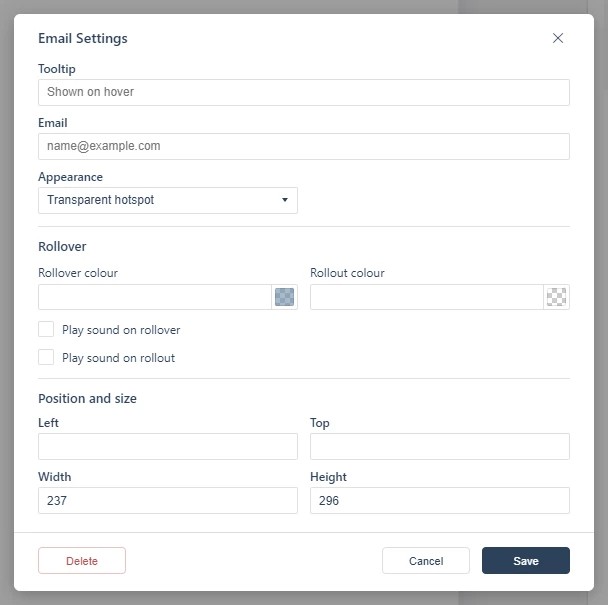
When the reader clicks the link, their mail application opens with the address filled in — no typing required. Email addresses printed in the source PDF are detected and linked automatically when the flipbook is created (see Adding a Web Link); use the Email tool to place one deliberately, or over artwork where no printed address exists. Email links stay inside the publication’s pages — for a message captured in the flipbook itself, see Adding an Information Pop-up.
If it doesn’t work
- Nothing appears on the page. These tools create hotspots, which are invisible unless hotspot markers are switched on — the area is clickable either way (see Linking to Another Page (Go To Page)).
- Nothing opens when the reader clicks. The link hands off to whatever mail application the reader has configured; on a device with none, the click produces no visible result.
- Nothing has changed on your live link. Edits reach readers only when you publish again — see Can I edit my flipbook after publishing?.