

When a reader opens your link, they see the page-turning flipbook with its navigation, zoom, and menus. Replicate gives you two levers over what they see: the settings panel in the editor, where the reading experience is configured, and the reader’s own controls, which readers can drive themselves. This article covers both sides: what readers see and do at your link, and where each behavior is configured. It collects the reader-facing behaviors end users ask about; every author-side setting’s details are in the settings-panel articles, which the section list below links to.
What readers see at your link
A published Replicate flipbook opens straight into the page-turn view. Nothing to install, any modern browser will work. The window title is your project name, so name projects with the public title in mind.
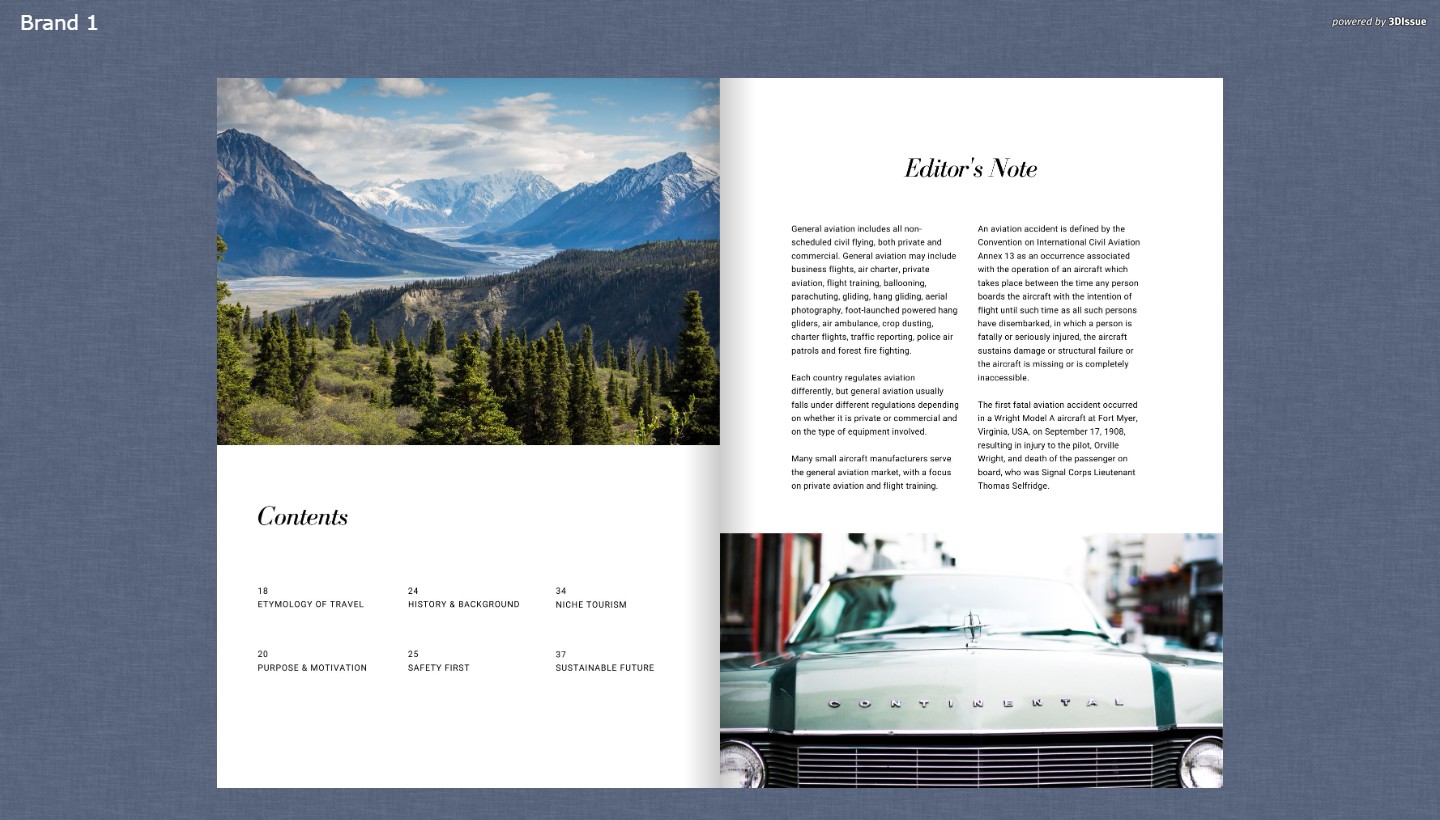
- Page-turn navigation: the flipbook is a digital replica of your PDF: turn pages by clicking/tapping and dragging them (dragging the page corners turns the page too). Flipbooks, by their nature, are desktop-first by design, but work on a phone/tablet using the same link.
- Arrive on a specific page: append
?page=Nto the URL (e.g.…/index.html?page=3opens on the spread containing page 3, not the cover). Use it to send readers straight to the page they need, ideal from emails and QR codes (see Publish & share your first flipbook). - Interactive elements respond: links, video, galleries, and the rest of the interactivity you added in the editor work in the reader; the full element set is listed in A Quick Tour of the Replicate Editor. Hotspots show only where you drew them; see When something doesn’t work for a reader below.
- Replicate | Flow switch: if the publication carries a Flow edition, readers switch between the page-turning flipbook and the reflowed Flow layout using the button at the bottom-left of the viewport (see What is Flow?). With no Flow edition generated or enabled, this switch does not appear in the reader.
Configuring the reading experience: the settings panel
The reader is configured from the editor’s settings panel: the icon rail on the right edge of the canvas opens it as an overlay (see A Quick Tour of the Replicate Editor for the full tour). The panel is organized into seven sections, and each one now has its own article:
- Pages: the publication’s page thumbnails; no per-page reader settings live here (per-page interactivity belongs on the canvas). See Pages settings.
- Viewer: how the interface around your pages works (magazine type, top banner, navigation placement, view mode). See Viewer settings.
- Appearance: the viewer’s visuals (background, preloader, intro, theme, table of contents, and the display options). See Appearance settings.
- Features: which reader features (search, print, sharing, thumbnails…) appear in the reader toolbar, and in what order. See Features settings.
- Zoom: zoom defaults per device and the zoom slider. See Zoom settings.
- Audio: flip sound, background audio, audiobook, and interactive sounds. See Audio settings.
- Advanced: page behaviour, publishing and performance, integrations, and access. See Advanced settings.

Moving through the publication
- The viewer’s navigation furniture: the features panel and its Contents control (both configured in the settings panel’s Viewer and Features sections) give readers the overview; the Table Of Contents entries are built in the settings panel’s contents editor. The reader’s toolbar (Print, Share, Search, Library, Download, Settings, Bookmark, Thumbnails, Translate, Exit, Fullscreen, Selection Tool) mirrors the Features toggles, arranged with Edit Feature Order.
- Deep links:
?page=Nlands on the spread containing page N (see What readers see at your link above for the detail).
Reading comfortably
- Zoom: readers can zoom into the page; quality is limited by the source PDF’s resolution (see Create your first flipbook from a PDF and the Why does my flipbook look blurry when I zoom? FAQ). The per-device defaults are the Zoom settings’ job Table of Contents editor.
- Choosing how to read: when a publication carries a Flow edition, readers switch between the page-turn spread and the single-column Flow View with the button at the bottom-left of the reader; on phones, Flow View is usually the more comfortable default (see How is Flow presented to end-users?).
- Audio: where the settings panel’s Audio section is configured, page audio plays for readers; the reading experience stays silent otherwise.
Taking content away
- Sharing: the reader’s Share control opens a Share via dialog pointing at the publication’s link; the networks offered are Facebook, Twitter, and LinkedIn.
- Printing: where print is enabled (Features → Print, on by default), the toolbar’s Print control opens a dialog of per-spread checkboxes with Select all; selected spreads are handed to the browser’s print flow (“Transferring to browser for printing”), so scope runs from a single spread to the whole publication (full detail in Printing from a publication).
- Downloading: the reader toolbar’s Download control (on by default, gated by the settings panel’s Features → Download toggle) fetches the publication file itself, a whole-publication export. Separately, a flipbook hotspot built with the Download tool hands readers a file attached by URL (see Adding a Download Button): per-file, author-chosen content. The two are distinct: one is a toolbar control, the other a hotspot you place.
- Search: the toolbar’s Search control searches the publication’s page text: a matches count, per-page snippet rows, and page-jump links. It is scoped to this publication; there is no cross-publication search in the reader.
When something doesn’t work for a reader
- Nothing loads: confirm the publication hasn’t been taken offline (see Taking a publication offline), then check the link itself (see Publishing, sharing & embedding your flipbook).
- iOS security warning: see Why does iOS show a security warning?; it is a device setting, not a publication fault.
- Interaction missing: hotspots show only where the author drew them; with Show Hotspot Locations off, invisible hotspots reveal themselves on hover/tap.
The dashboard Settings dialog is not the viewer settings
Two different “Settings” live within one project; don’t confuse them:
- The editor’s settings panel (above) configures the reading experience.
- The dashboard tile’s ⋯ → Settings dialog holds only Brand and Publication, project metadata, not reader options. Renaming lives on the same tile menu (⋯ → Rename); for taking a publication offline, see Publish & share your first flipbook.
Testing the experience you configured
Settings only matter as the reader sees them. Before sharing the link:
- Use the editor’s Preview button (top bar) to page through with the current settings applied, with no publish needed.
- Publish, then open the Published Link and read it like a reader: navigation, zoom, backgrounds, tooltips, and any toggles you changed. Publishing updates the same link, so re-check after republishing.
- Send yourself
?page=Ndeep links for the pages readers will actually land on (see Publish & share your first flipbook). - On a phone, open the same link: the flipbook scales rather than re-flows, so check touch page-turns and zoom on the device (see Testing your publication on mobile devices).