

You’ll end up with a live address for your publication that you can send to anyone, and you’ll know where to find it again when you need it.
Publishing generates the cloud-hosted publication and gives you its link.
You’ll need
- A project that has finished processing: its dashboard tile offers Publish, not “Preparing…”.
- Somewhere to send the link: an email, a web page, or a QR code.
Publishing
- Click Publish in the top bar (or Publish on the dashboard tile, or Publish Online in the creation success dialog).
- Publishing starts immediately; a Publishing Flipbook dialog tracks progress.
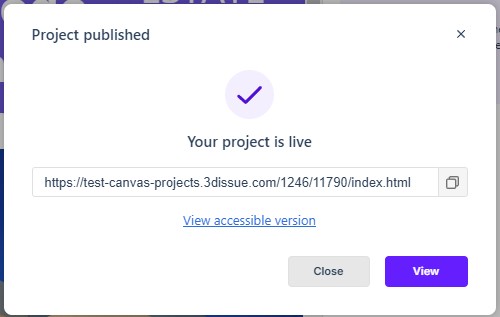
- When it completes, the dialog reads “Flipbook published — Your project is live” and presents the publication’s URL (readonly, with Copy) and a View button. The top bar’s Published Link button opens the same link from now on.
More publish options, beside the Publish button, offers Self Host and Publish to Webhook as alternative ways to get the publication out.
Where the Link Lives
- The publish success dialog (copy button included).
- The editor’s Published Link button.
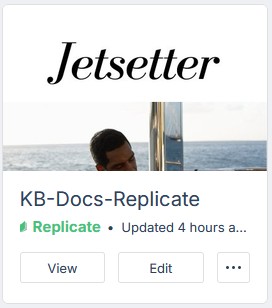
- The dashboard tile, whose View button opens the publication.
Sharing Options
- Direct link: send the URL; readers need only a browser.
- Open on a specific page: append
?page=Nto the URL (e.g.…/index.html?page=3opens on the spread containing page 3). - Embed on your site: place the URL in an
iframeon your page (set width/height; usehttps://to match a secure site, or browsers will block the mixed content), or use a lightbox-style popup.
Republishing and Taking a Publication Offline
Publishing again after edits updates the live publication at the same link. Replicate has no separate Unpublish control. The Dashboard tile’s ⋯ menu provides the option to delete the project and take it offline.
If it doesn’t work
- The progress dialog stops at 90%. That is a known slow case rather than a dead hang; give it a few minutes, and don’t retry in a loop, because each attempt queues another build (see Publishing is stuck at “Generating static pages · 90%”.).
- An embedded copy shows a blank frame. The
iframemust usehttps://to match a secure page; a secure page that loads a plainhttp://flipbook is blocked as mixed content. - The link has stopped working altogether. There is no unpublish step in Replicate, so a dead link means the project behind it was deleted from the dashboard.