

You’ll end up with a flipbook on your dashboard that you can edit or publish, plus a link you can share.
You’ll need
- A PDF that meets the limits below.
- A Brand and a Publication to assign. Both are preselected in the Create Flipbook dialog, so the defaults are fine if you have not set up your own.
Before You Upload: PDF Requirements
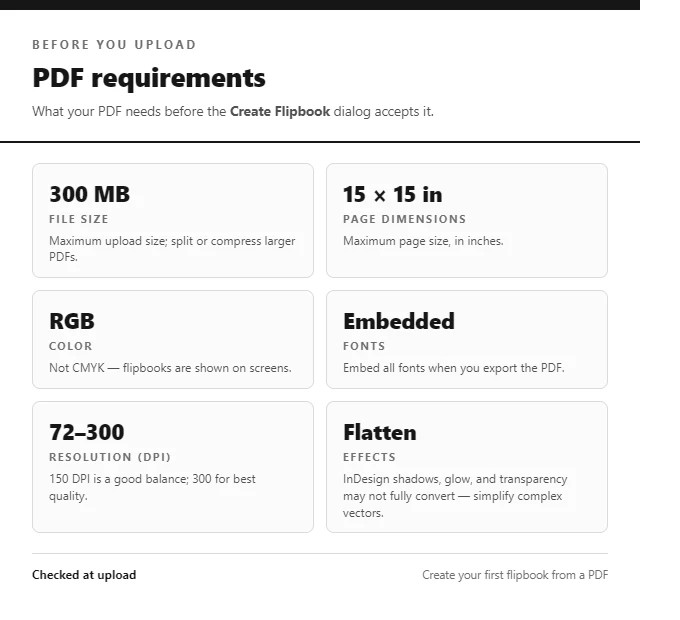
- File size: up to 300 MB.
- Page dimensions: maximum 15 × 15 inches.
- Color: RGB (while CMYK is accepted — flipbooks are shown on screens and RGB will result in a more accurate conversion).
- Fonts: embed all fonts when exporting the PDF.
- Resolution: document DPI in the 72–300 range; 150 DPI is a good balance, 300 for best quality.
- Effects: InDesign effects such as drop shadows, glow, special strokes, and transparency may not be fully supported; complex vector objects are best simplified or flattened.
Creating the Project
- From the dashboard, click Replicate under What would you like to create? (or Create New in the side menu).
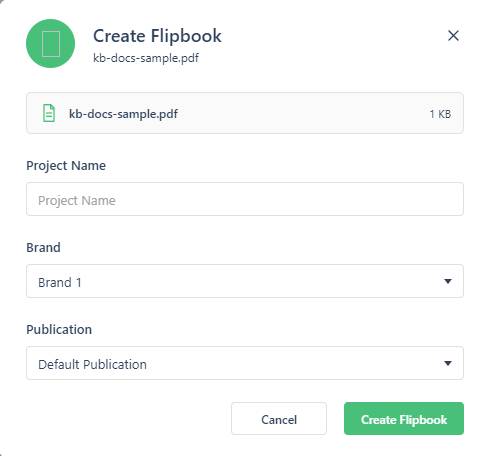
- The Create Flipbook dialog opens a file chooser — a PDF is required to continue. Your file’s name and size are shown once attached.
- Set the Project Name, Brand, and Publication (sensible defaults are preselected).
- Click Create Flipbook. The dialog shows upload progress, and the dashboard tile shows “Preparing…” with Edit disabled while the pages are processed.
- When processing completes, a Flipbook Created dialog confirms it with the cover thumbnail and two shortcuts: Publish Online (go straight to publishing) or Edit Flipbook (open the editor).
After Processing
Dismiss the success dialog and the dashboard tile offers Publish and Edit. Open the editor to add interactivity and configure the reading experience, or publish straight away to get your link. If this is your first project, What is Replicate? explains what the upload becomes and where the published file lives.
If it doesn’t work
- The dashboard tile sits on “Preparing…”. That is processing, not failure: Edit stays disabled until it finishes, and a large PDF takes longer than a short one.
- The pages look wrong once it opens. The cause is nearly always in the source file rather than the upload — the limits are in What are the PDF requirements?, and color specifically is covered by Why does my CMYK image look wrong? and CMYK Images.
- An upload is rejected well under 300 MB. File size and page dimensions are separate limits, so a page that is too large fails on dimensions alone — both limits are listed in What are the PDF requirements?.