

You’ll end up with reader activity (which pages open, how long readers stay, where they leave) arriving in your own Google property, with nothing stored on the 3D Issue side.
You’ll need
- A GA4 web data stream and its Measurement ID (
G-XXXXXXXXXX), or a Tag Manager container ID (GTM-XXXXXXX). - The Studio project, published after the IDs are saved.
Analytics tell you how readers actually use your publication: which pages they open, how long they stay, where they leave. Studio publications forward reader activity to your own Google property: you paste your IDs into the project’s settings, publish, and the data lands in your Google Analytics (or Google Tag Manager) reports. No code edits, and nothing is stored on the 3D Issue side.

Get your GA4 measurement ID first
In the Google Analytics console: Admin → Data streams → choose (or create) a web data stream → copy the Measurement ID, which has the form G-XXXXXXXXXX. If you manage tags centrally, copy your Google Tag Manager container ID (GTM-XXXXXXX) instead or as well. If you’re creating a property for the first time, Google’s own setup guide walks through it — the 3D Issue settings panels link to it directly.
Working from an older tutorial? Anything referencing Universal Analytics (IDs of the form UA-XXXXXXX, or “UA properties”) predates Google’s 2023 switch-off: Universal Analytics stopped collecting data in July 2023, and GA4 is the only supported generation. Substitute a G- measurement ID wherever an older tutorial shows a UA- one. (Google changes its console often, so trust the console over any screenshot.)
Add the ID in Studio
Open Project Settings (the cog icon in the top bar) → SEO/SEM tab → Tracking. Paste your ID into Google Analytics ID (G-XXXXXXXXXX) and, if you use it, Google Tag Manager ID (GTM-XXXXXXX). The Learn how to set up Google Analytics link next to the field opens Google’s guide.
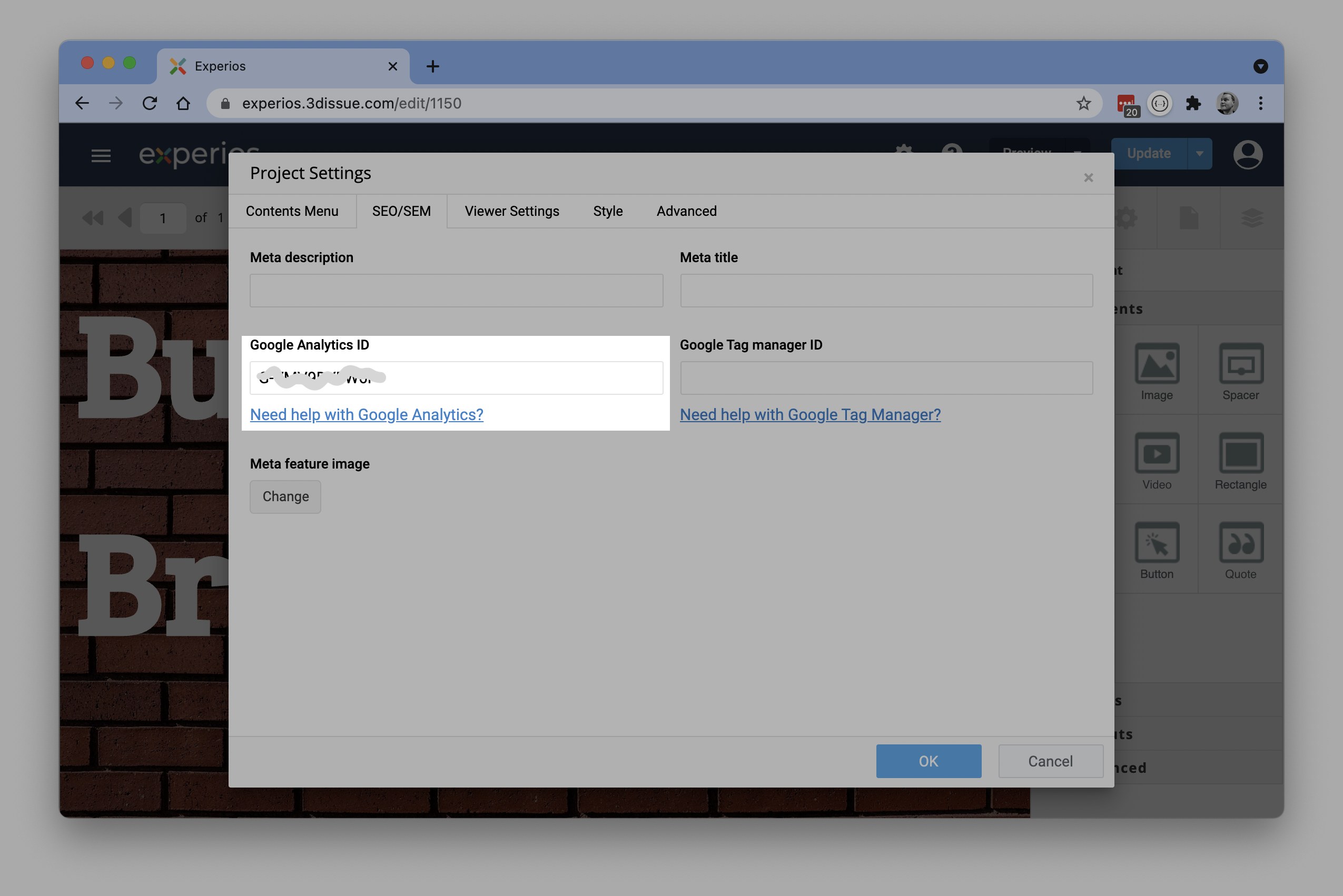
Once set, metrics for the published project appear in your Google Analytics or Tag Manager reports. The same tab also holds the SEO fields; see Search Engine Visibility and Tracking for those. Where the numbers are read once they arrive is How can I see analytics for my publication?.
Label your interactive elements
Interactive elements can carry an Analytics Tag (called Analytics label on some elements) — a short name of your choosing that makes that element’s events easy to isolate in your reports. Give them recognizable names (“footer-download”, “chapter1-audio”) rather than leaving them anonymous; your future self, reading the GA4 event stream, will thank you.
Checking it works
Publish, open the live link, click through a few pages, then check the Realtime report in your Google Analytics console — your visit should appear within moments.
Note: Replicate sets the ID on its brand, and Flow exposes no tracking field at all — see Google Analytics 4 setup (Replicate) and Google Analytics for Flow publications (e-165).
If it doesn’t work
- Realtime stays empty. Confirm the ID was actually saved in Project Settings → SEO/SEM → Tracking.
- The ID is saved and nothing arrives. Publish again — the IDs are written into the published version, so a save without a publish changes nothing.
- Still nothing. Check browser privacy extensions and ad blockers before suspecting the setup; they block the analytics scripts.