

You’ll end up with a single project that holds both editions — the page-turning Flipbook and the responsive Flow edition — and publishing ships them together.
You’ll need
- A PDF to build from, or an existing Replicate project to add Flow to.
- Time for processing to finish before the Flow edition can be edited or published.
Flow does not need a separate project for your Flipbook and responsive versions. Create your publication with Flow and it generates a responsive version of your PDF, page by page, inside the same project as the page-turning Flipbook. When you publish, both editions ship together.
Enabling Flow
Flow can be enabled when a project is created:
- On the Dashboard, under “What would you like to create?”, choose Flow.
- In the Create Flow dialog, pick the PDF — it opens a file chooser, and a PDF is required to continue.
- Set the Project Name, Brand, and Publication, then click Create Flow to upload the PDF and begin processing.
Alternatively, an existing Replicate project can gain its Flow edition from the editor: open the project and select the Flow side of the Replicate | Flow switch above the canvas. That opens a Convert to Flow panel — “Create responsive, mobile-friendly versions of your publications with Flow” — offering Convert and See how Flow works. Click Convert and the edition starts preparing; nothing is generated until you do, and you can keep working on the Replicate version meanwhile. Starting from a publication that is already live, step by step, is Take a published flipbook to a responsive edition (e-346).
While Flow prepares the publication, its dashboard tile reads “Preparing…” and Edit stays disabled. When the tile offers Publish and Edit, the publication is fully-processed. Processing time depends on the size and complexity of the PDF (see How long should Flow take to process my pages? (e-106)).
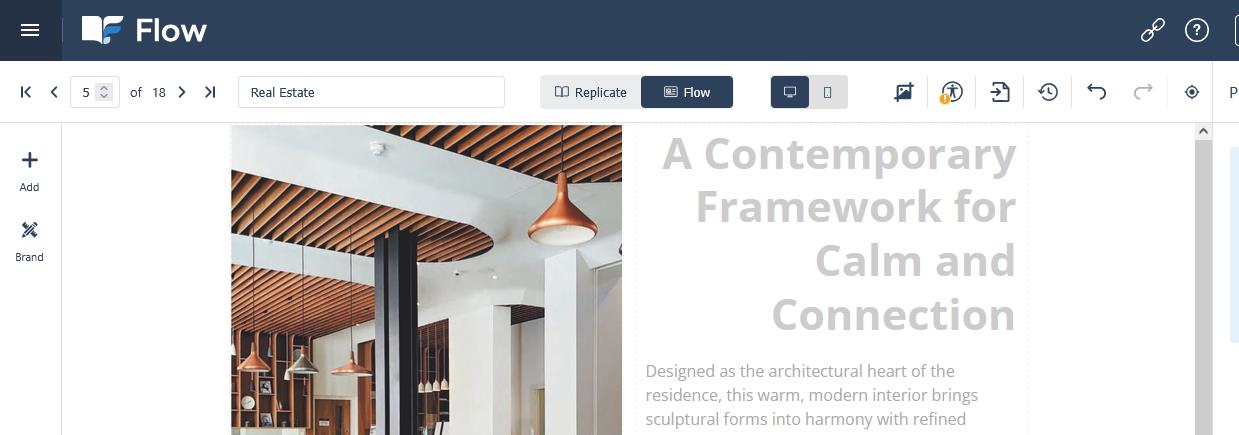
Two Editions, One Project
Open the project and the editor carries a Replicate | Flow switch at the top of the canvas. Replicate shows the page-turning edition; Flow shows the responsive one, reconstructed from your PDF as a single-column layout. Switch at any time — nothing you do in the Flow edition changes the Flipbook, and vice versa.
Flow’s first output is a best guess to refine, not a replica: restructuring for readability is the whole point, so the Flow edition will look different from the Flipbook by design. While pages are processing you can work on the Flipbook edition — add links, buttons, and media, refine branding, and prepare navigation and viewer settings.
Switching Flow Off
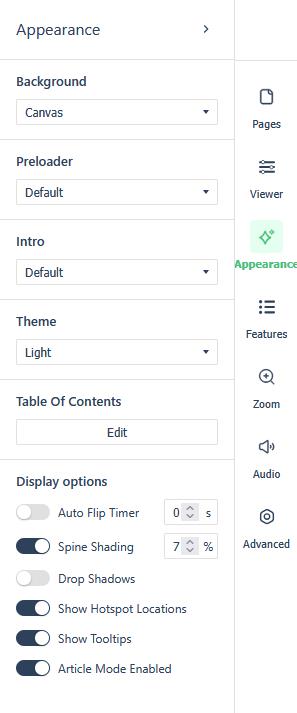
Changed your mind? In the Replicate editor, open Flipbook Settings. The Appearance section holds an Article Mode Enabled checkbox. Turn it off and the publication ships with the standard Flipbook experience only — the Flow work stays in the project for later, and can be re-enabled at any time. The toggle on its own is described in Flow Mode on/off.
If it doesn’t work
- The tile stays on “Preparing…” and Edit is disabled. Flow is still processing the PDF; time depends on the size and complexity of the document. Work on the Flipbook edition in the meantime.
- The Flow edition looks nothing like the Flipbook. That is by design — each page is restructured into a single-column layout for readability rather than reproducing the print spread.
- Readers only see the page-turning version. Open Flipbook Settings → Appearance and confirm Article Mode Enabled is ticked.
- You switched Flow off and want it back. Nothing is lost — the Flow work stays in the project and re-enabling the same checkbox brings it back.