

The Library gathers your brand’s published publications into one place and lets you curate which of them belong to your brand’s public library feed. Open it from the user menu: click the User icon and choose Library.
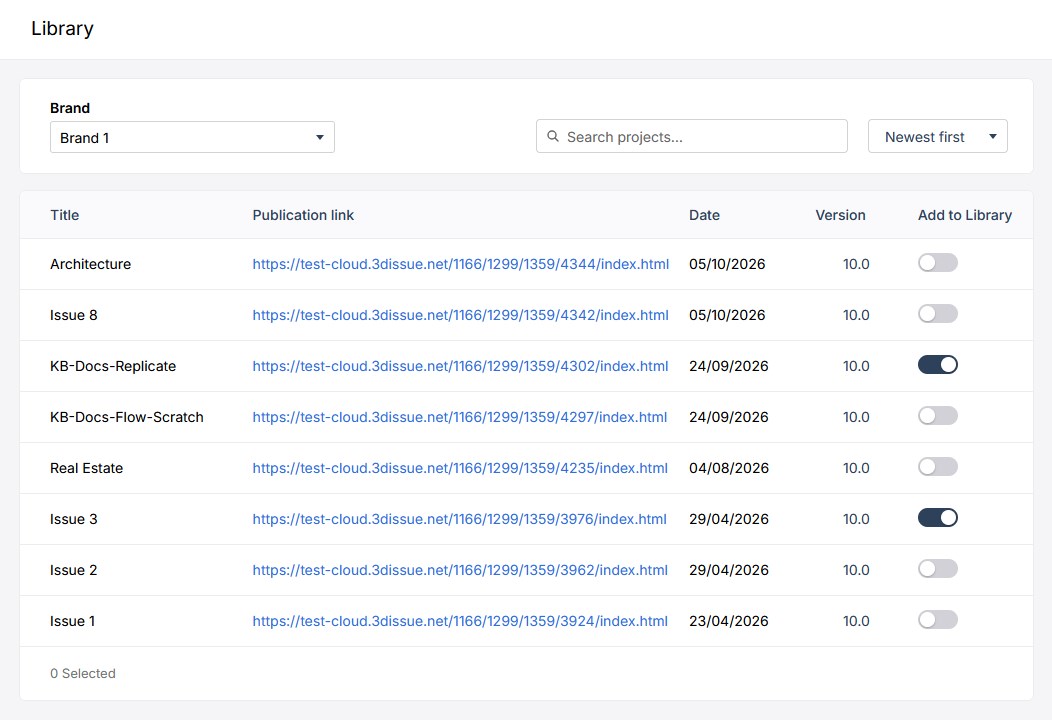
Finding Your Publications
- Brand — the Library is brand-scoped. Pick the brand whose publications you want to work with.
- Search filters the table by title.
- Sort — Newest first, Oldest first, Title A–Z, or Title Z–A.
Reading the Table
- Title is the publication’s name.
- Publication link — the public address of the published issue; click it to open the reader view in a new tab.
- Date is when this issue was published.
- Version — the reader version the issue was built with, e.g. 10.0.
- Add to Library is the toggle described below.
Add to Library
Every issue in the table can be switched in or out of your brand’s library feed with its Add to Library toggle:
- Switch it on and the issue joins the feed.
- Switch it off again and the issue drops out of the feed. The publication itself, and its direct link, are unaffected.
Only issues you have actually published appear here.
Your readers can access your library by selecting the Archive button when viewing your flipbook.