

3D Issue Studio gives you three ways to recover from mistakes: undo for the last few actions, Version history for recent save points, and reimport for when you want to start work on a page afresh. Each is deeper than the last and costs more of your recent work, so reach for the shallowest one that solves it.
First: undo and redo

Undo and Redo live in the editor actions strip, behind the arrow toggle at the top of the page bar. The buttons are labeled with the action they’ll reverse, “Undo: Add bootstrap-row”, so you can see exactly what the next click will do. When there’s nothing to undo, the button says so and is disabled. For a misfired delete or a bad drag, this is the whole fix.
Next: restore a save point
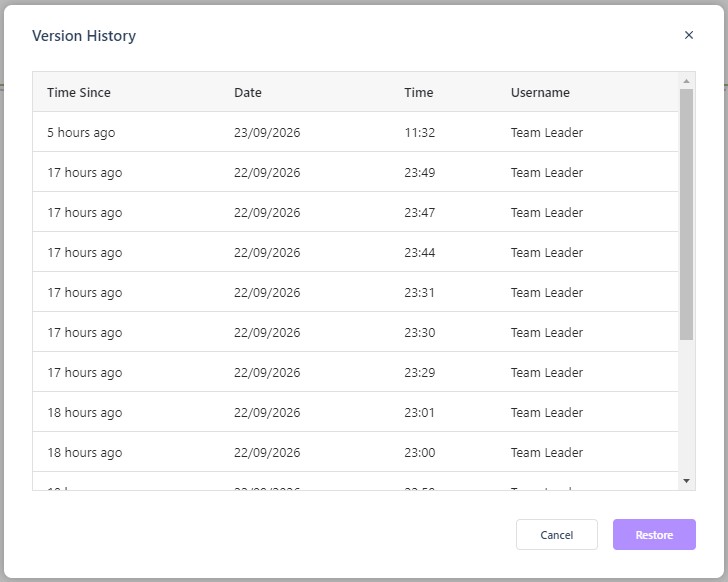
Version history, also in the actions strip, opens a table of save points with Time Since, Date, Time, and Username. Autosave records continuously (the top bar shows Saved when your work is stored), so the table doubles as the recent history of shared work — you can see who saved what, and when. Select a row and click Restore to return the project to that save point; Cancel closes without changing anything. Restore is deeper than undo: it rewinds everything past that point, not one action. See Managing Your Work with Undo, Redo, and Version History for the full table walkthrough.
When the page itself is wrong: reimport
If the problem isn’t an edit you made but the imported page itself (a conversion came out badly, an image is mangled, the layout broke in a way local fixes can’t repair), restore isn’t the tool. PDF reimport, in the editor actions strip (shown when the project was created from a PDF), rebuilds the page from its source; the Flow editor’s equivalent button is labeled Reimport page. Undo can’t reach a bad import; reimport starts the page over.
The same thinking applies per image: if one picture imported badly, take it fresh from the source PDF with Edit crop areas instead of rebuilding the page — select the area (hold Shift for several at once), then add it to the page or save it to the Media Library and swap it in with Replace. In the Flow editor, Reimport page and Edit crop areas sit on the canvas toolbar and work against the flipbook’s source PDF. See Improving Your Flow Publication.
Before the risky operation
Recovery is easier when there’s a known point to return to:
- Before a big restructuring, or handing the project to a teammate, open Version history first and note the latest save. That’s your way back.
- Teammates show in the history under their own usernames, so after a joint editing session the table tells you who changed what, and when.
- Autosave means “I forgot to save” isn’t a thing — but it also means the last save point may already include the mistake. Undo first for fresh errors; restore for older ones.