

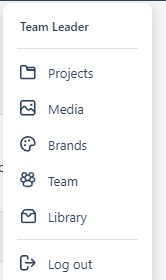
The Team screen is where you manage the people who can work in your account. Open it from the user menu by clicking on Team:
The Users Table
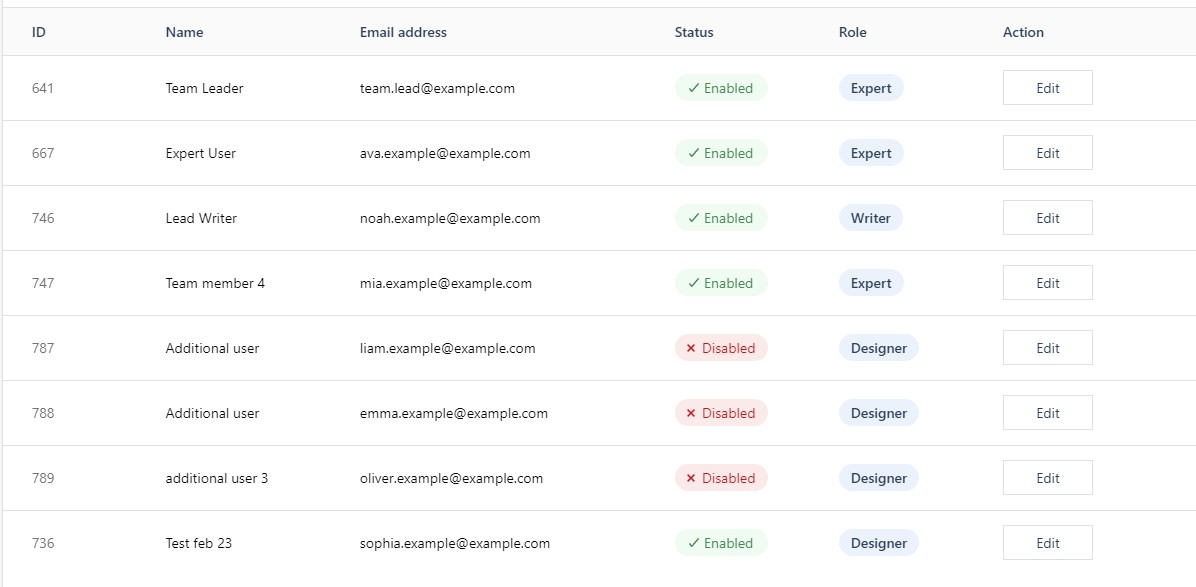
The Users table lists every user with their ID, Name, Email address, Status (Enabled or Disabled), and Role. Use Add User at the top of the screen to invite someone new, and Edit on any row to view their account details.
Roles
Three roles are available (Designer, Expert, and Writer) assigned per user in their Account details, accessed by clicking ‘Edit’. Pick the role that matches what each person needs to do. Roles are displayed in the Users table.
- Designer is the standard builder role: control over all aspects of a publication’s structure, layout, and content, including adding pages, blocks, and elements and applying layouts.
- Expert — everything a Designer can do, plus the Developer Tools for tweaks and additions beyond the editor’s normal controls: inspecting or editing the underlying HTML and CSS of a publication, and including custom scripts in a project. Developer Tools are switched on per account, so not every user sees them. What they add is described in Developer Tools (e-351). Suited to someone with web-development knowledge.
- Writer — adds and edits content but can’t alter the design. Writers populate page templates with text and images, and can add new elements, but can’t reposition elements once placed, can’t remove elements (their own additions excepted, via Undo), and don’t get the Properties panel — only the properties available on the element’s label. Elements a Writer adds stack vertically at full page width until a Designer or Expert positions them.
You can disable a user in Central to revoke their access without deleting their account — their projects and uploads remain, and you can re-enable them at any time.
Stock Content Access
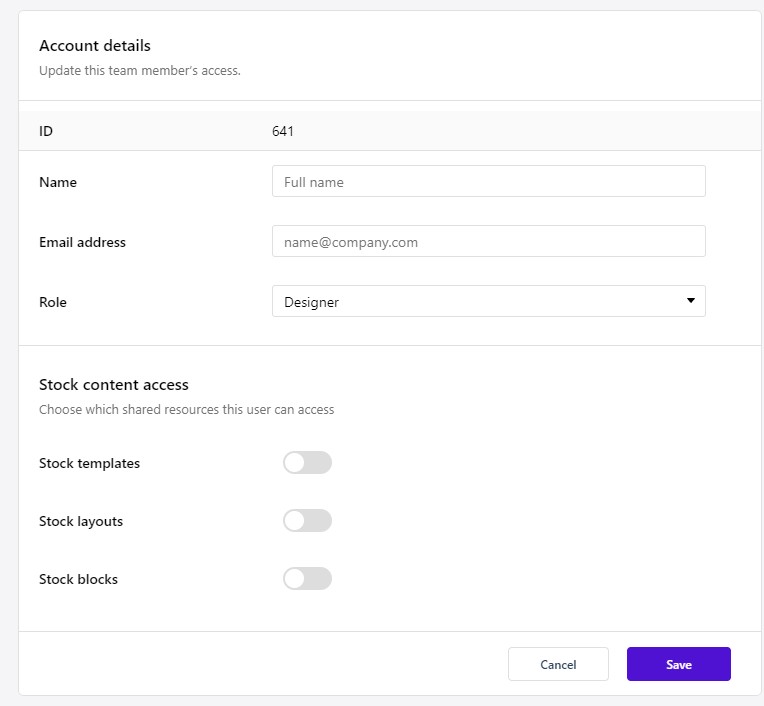
The Edit User form also controls which shared resources each person can reach: Stock templates, Stock layouts, and Stock blocks. These toggles dictate what a user sees in their editor: the Templates option allows for creating a project from a template, while the Blocks and Layouts sections of the Add panel will contain the stock content a user is allowed (see Working with Blocks, Layouts, and Templates).
Compliance
The Compliance tab configures accessibility checking for everyone on your team, the same validator your authors see in the Studio editor. It has two toggles:
- WCAG validator — shows accessibility checks in the editor while projects are being created (on by default). See Improving Accessibility for what the validator checks.
- Require WCAG compliance before publishing — prevents publishing until the required accessibility checks pass (off by default; see Why is my project not compliant?).
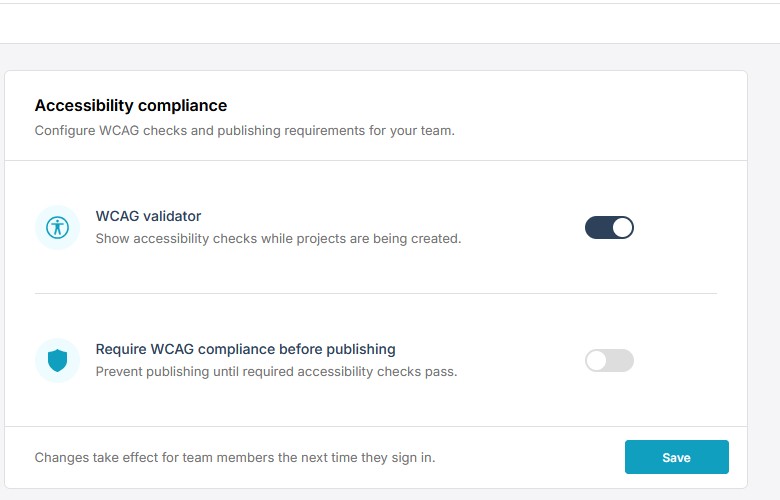
Click Save to apply your changes; they take effect for each team member the next time they sign in.