

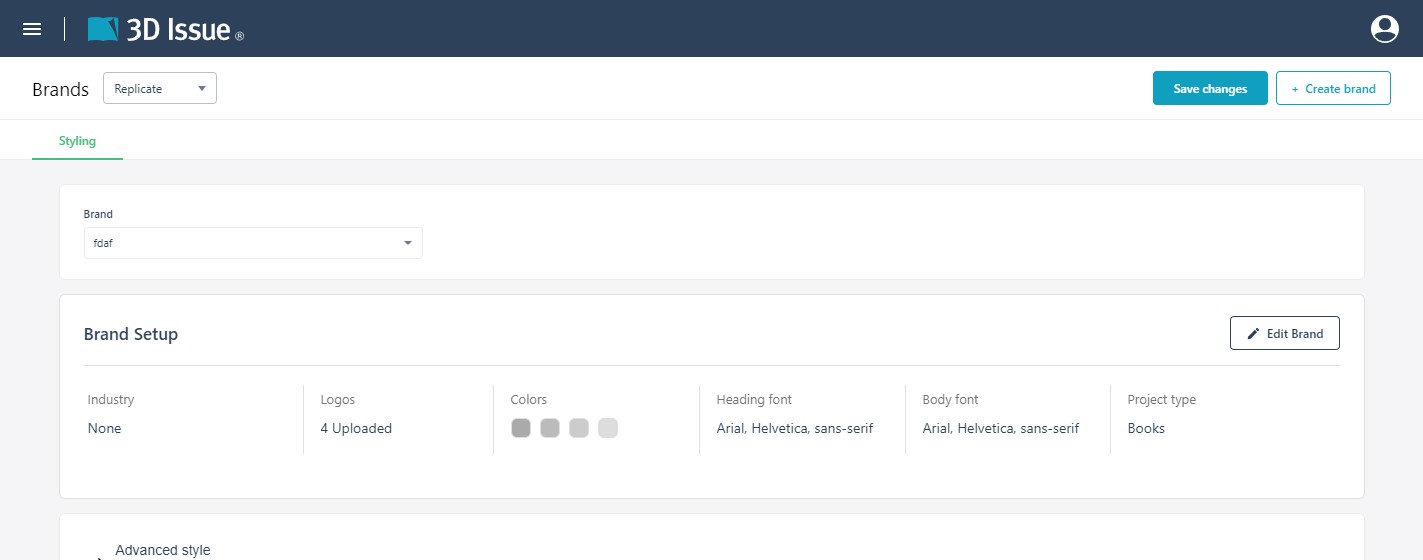
A brand is your reusable design system — logos, colors, fonts, and default element styling. Brands are managed from the dashboard: open the user menu and choose Brands. Each brand belongs to a product, so switch between Replicate, Flow, and Studio using the product selector at the top of the screen.
Brand Setup
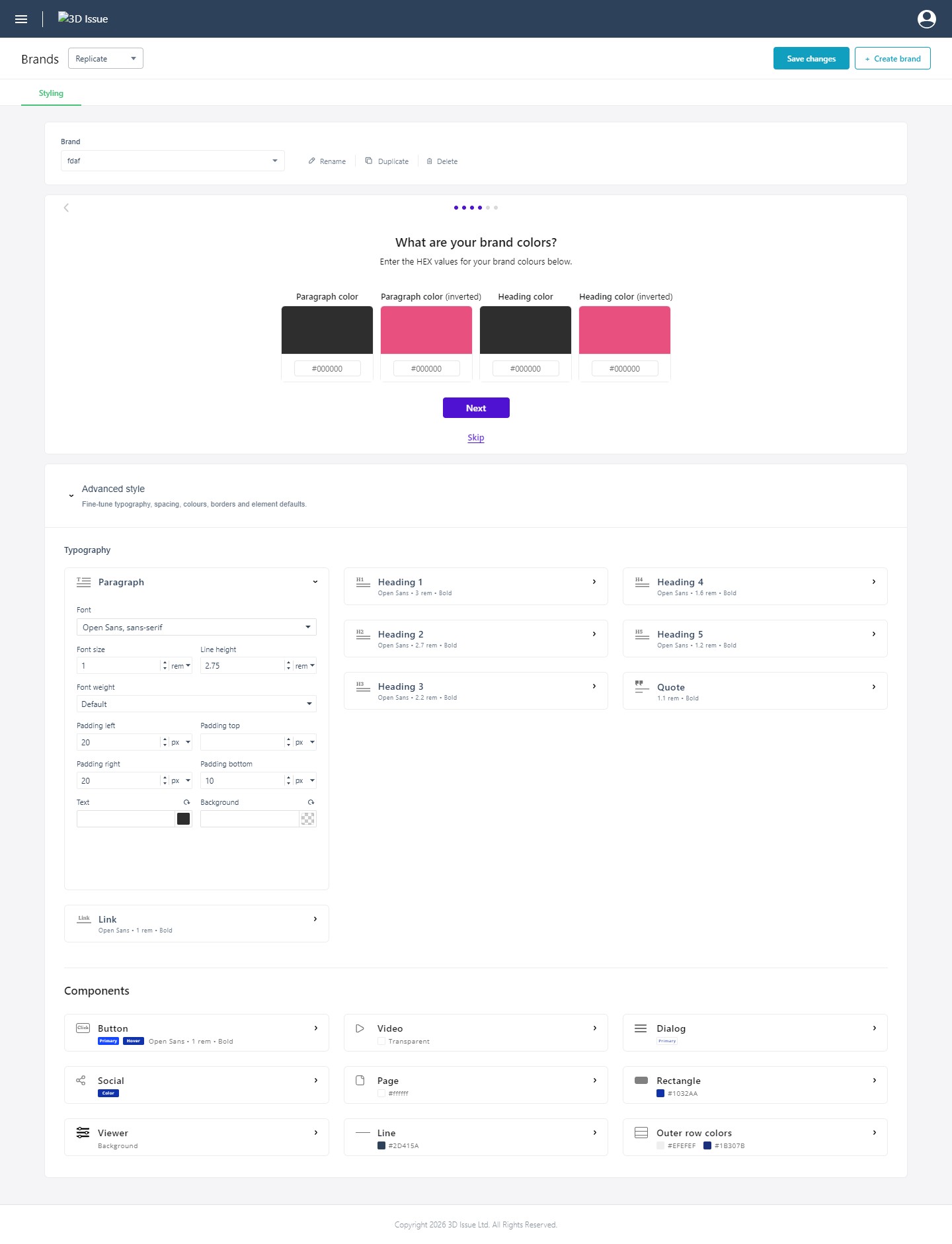
Pick a brand from the list (or click Create brand). The Brand Setup panel summarizes it and opens with Edit Brand — a guided wizard that walks through your brand name, industry, logos, colors, fonts, and project type step by step. A brand can hold up to four logo variants, which is exactly what the Logo element in Studio draws on (see Working with Images, Galleries, and Logos). The six steps that create one are walked in Creating a Brand with the Brand Wizard (e-348).
Advanced Style
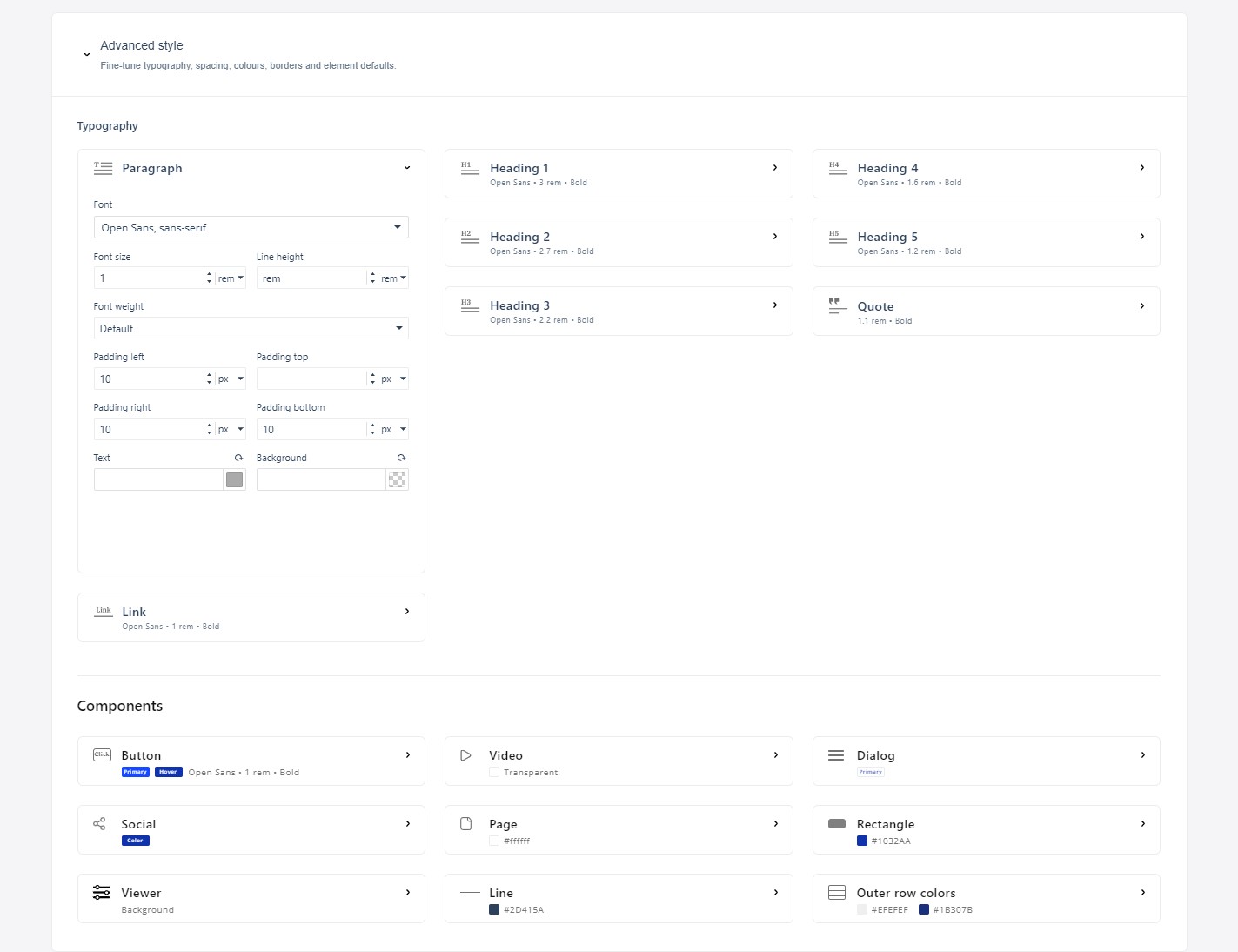
For precise control, open Advanced style to fine-tune typography, spacing, colors, borders, and element defaults:
- Typography: A tab per text type — Paragraph, Link, Heading 1–5, and Quote — each with Font, Font size, Font weight, Line height, per-side Padding, Text color, and Background. Reset buttons return any control to the brand default.
- Components: Defaults for the rest of the design system — Button (including its hover state), Social color, Viewer background, Video background, Page, Line, Dialog, Rectangle, and outer row colors.
When you change any brand setting, click Save changes. These defaults apply to new elements as you design, and to pre-existing elements already using the brand, as long as they haven’t been styled on the canvas using their properties.
Brands in the Editor
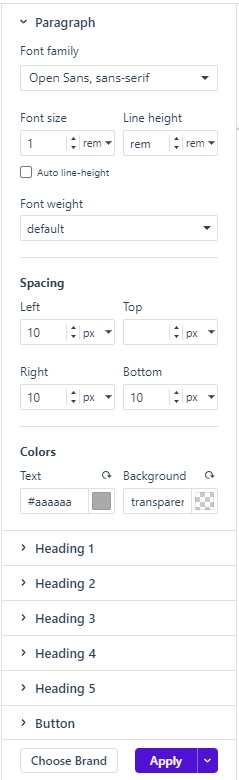
Inside the Studio editor, the Brand button on the left rail shows the current brand’s defaults live — the same typography, spacing, and component colors — with a Choose Brand picker, an Apply button to restyle the project using the selected brand, the option to save a brand’s styles in the rail without applying them. Choosing a different brand (or editing values) here and clicking Apply is how an existing project adopts new styling.