

Studio includes a set of AI helpers that can draft text and articles, generate images, and turn an uploaded PDF into an editable project. There are two places to find them: the AI Assist Control Column, and the Generate section of the Add panel.
The AI Assist Control Column
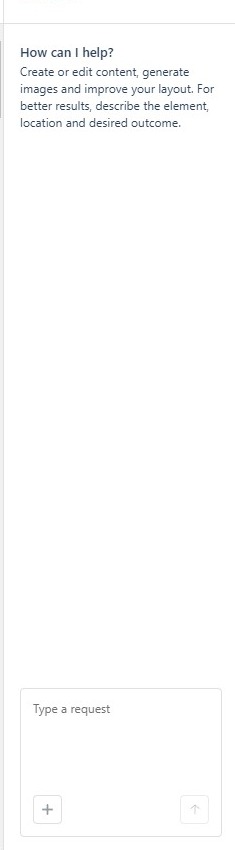
Click on the AI Assist icon to open the AI Assist Control Column. It greets you with “How can I help?” and a single guiding sentence: create or edit content, generate images and improve your layout — for better results, describe the element, location and desired outcome. Type your request into the box and click Send (the button activates once you have typed). An Add button sits beside the input for attaching further context to your request.
- Be specific: Name the element, where it is, and what you want to happen — for example, “rewrite the heading in the second row to be shorter” or “generate a landscape image of a harbor for the cover”.
- Iterate: Treat the first result as a draft and refine your request rather than starting over.
The Generate Menu
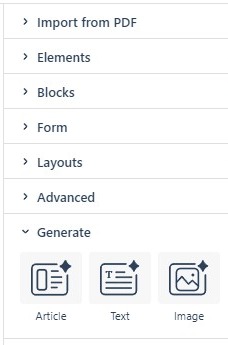
The Generate section of the Add panel offers three dedicated generators:
Generating an Image
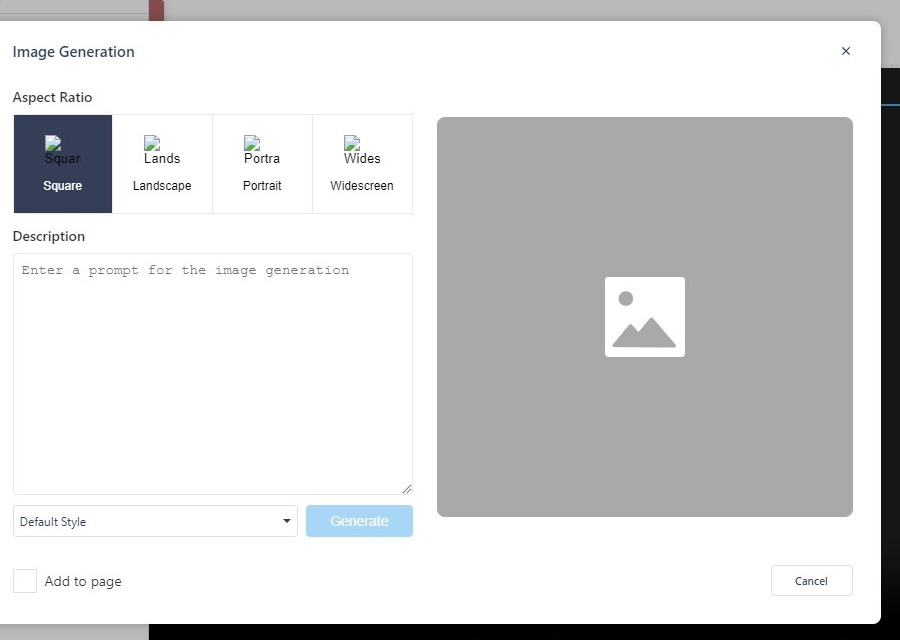
Click Generate → Image to open the Image Generation dialog:
- Aspect Ratio: Square, Landscape, Portrait, or Widescreen.
- Description: Describe what you want to see. The more concrete the description, the closer the result.
- Style: Choose from Default Style, 3D Model, Analog Film, Anime, Cinematic, Comic Book, Digital Art, Enhance, Fantasy Art, Isometric, Line Art, Low Poly, Modeling Compound, Neon Punk, Origami, Photographic, Pixel Art, and Tile Texture.
- Generate: Creates the image and shows a preview; Add to page places the result on your page (enabled by default).
Generating Text
Click Generate → Text to open the Text Generation dialog. Enter a prompt, click Generate, and preview the result before applying it. The dialog keeps a Prompt History (with a Clear History link) so you can revisit earlier prompts, and a Plain text option controls whether formatting is stripped from the result.
Generating an Article
Click Generate → Article for longer-form drafting. It shares the Prompt History and preview flow with Text generation, and adds two controls: Max Images (the number of images the generated article may include, default 1) and Apply Default Layout, which structures the result into Studio rows and columns as it is placed on the page.
Importing a PDF with AI
When you create a project via Studio → Upload a PDF, Studio’s AI import converts the PDF into an editable project: name the project, drag in your PDF (or click Upload), and let the conversion build pages, text, and images you can then refine in the editor. If some elements convert imperfectly — typically complex images or unusual type — fix them by hand rather than fighting the import (see Creating a New Studio Project). What the import can and cannot reproduce is in Can I import a PDF into Studio?.