

The dashboard’s Recent Projects list is your control center for every project across Replicate, Flow, and Studio. Use View all for the complete list, the All Products dropdown to filter by product, and the List view / Grid view toggles to change how projects are displayed.
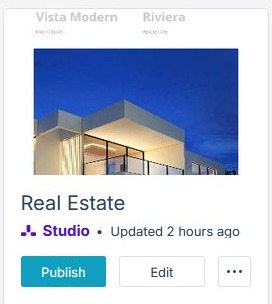
The Project List
Each project shows a thumbnail, its title, the product it was made with (Replicate, Studio, or Flow), and a timestamp telling you when it was last updated.
Quick Actions
- Publish: Make the project available to readers.
- View: Open the published project (shown once a project has been published).
- Edit: Open the project in its editor.
The Ellipsis Menu
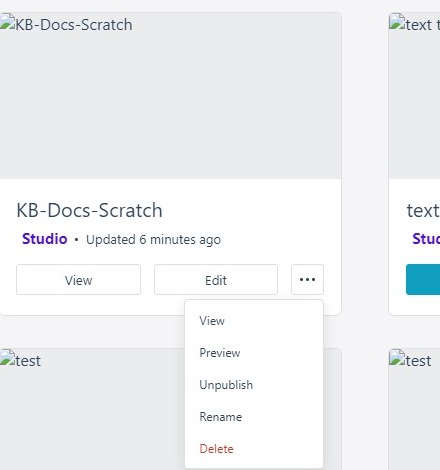
Clicking the More options (…) icon on a tile opens a menu with the remaining actions. For Studio projects this offers View, Preview, Unpublish once the project is live, Rename, and Delete; Replicate projects show Stats, Settings, Replace PDF, Rename, and Delete instead, reflecting their PDF-based workflow, with Share and Embed joining the list once the flipbook is published.
- View: The same control as the quick action above.
- Preview: See a preview of the project as readers will, without publishing it.
- Unpublish (Studio): Remove a publication from public view. Doesn’t change the actual project — Replicate projects have no Unpublish: deleting is what takes them offline.
- Rename: Give the project a new title.
- Delete: Permanently remove the project — this cannot be undone, so double-check before confirming.