

You’ll end up with a Studio project open in the editor, ready for you to lay out your first page.
You’ll need
- A project name you will recognize on the dashboard.
- A Brand. It applies your fonts, colors, and logos from the start. You can use your account’s default Brand.
- Whatever you are starting from: a PDF to import, or nothing at all for a blank canvas.
Every new Studio project starts the same way: from the dashboard, click Studio in the What would you like to create? section. The Create Studio dialog asks How would you like to start? with three options:
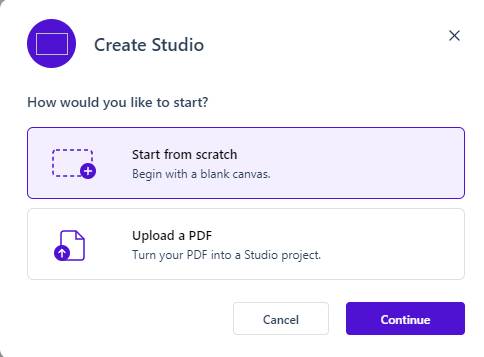
- Start from scratch: begin with a blank canvas.
- Upload a PDF: turn your PDF into a Studio project, where each page converts into responsive, editable content rather than a picture of the print page (see Importing a PDF with the AI Import Wizard).
- Use a template: start from a ready-made design, picked from a gallery of templates in the next step.
Select an option and click Continue. Cancel closes the dialog from any step that offers it, and the X closes whichever step is open. Back returns to the previous step: on the template path, from the setup form to the gallery.
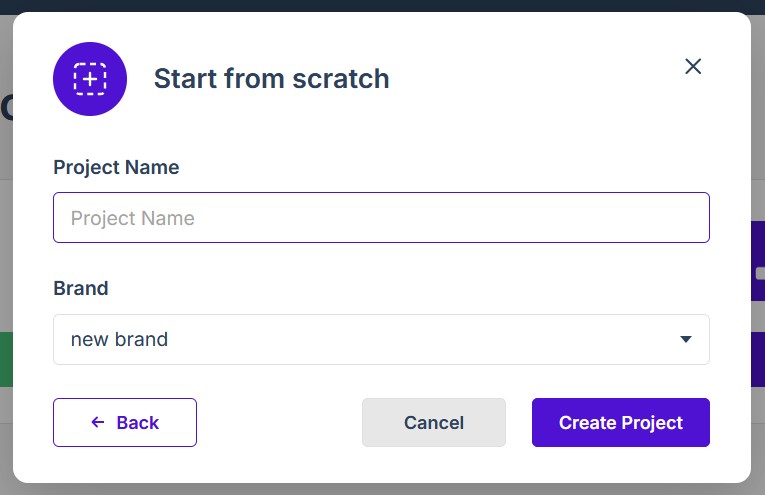
Set up and create the project
- If you chose Use a template, pick one from the gallery first: narrow it with All templates or the Brochure, Magazine, Report and Newsletter tabs, search it by name, then select a design.
- Enter a Project Name so you can recognize the project on your dashboard. A template fills in its own name, so replace it if you want a different one.
- Choose a Brand, then click Create Project — the editor opens with your blank canvas, the pages your PDF converted to, or the pages of the template you chose, ready to design.
Your work is saved automatically as you edit, and the project appears in Recent Projects on your dashboard the next time you return. The whole path from an uploaded PDF to a live link is walked in Your first Studio publication, and because the dialog takes one PDF at a time, Can I create a project from multiple PDFs at once? covers a source that arrives in several files.
If it doesn’t work
- Imported pages do not look like the PDF. That is the conversion working as intended — each page becomes responsive, editable content rather than a facsimile of the print layout. See Why doesn’t my project exactly resemble my imported PDF?.