

You’ll end up with a video on the canvas showing a live preview of the clip it will play, embedded from YouTube, Vimeo or a file URL.
You’ll need
- The page open in Studio, with room on the canvas for a video element.
- A YouTube or Vimeo link, or a direct URL to an mp4 or webm file.
- The video element selected, so its label buttons and properties panel are showing.
Studio lets you embed YouTube, Vimeo, and your own uploaded video files (mp4, webm) onto the canvas.
Add the element, then configure it
- Add the element. Click Add on the left-hand rail, open the Elements section, and either click the Video icon to place it at the end of the page, or drag it onto the canvas where you want it.
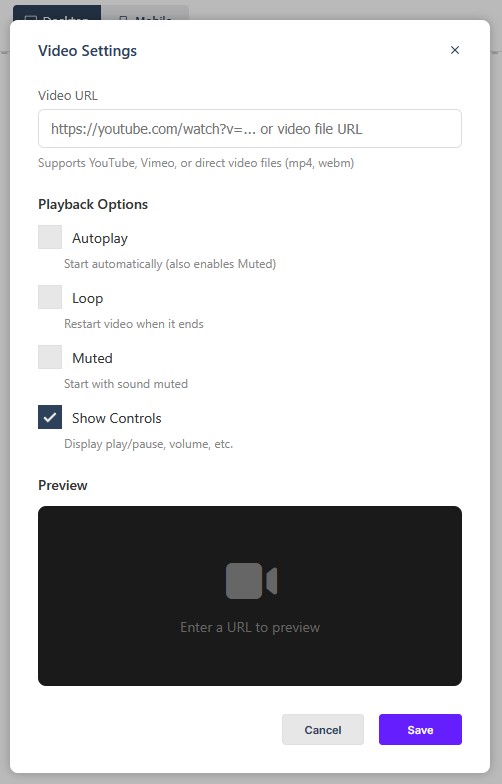
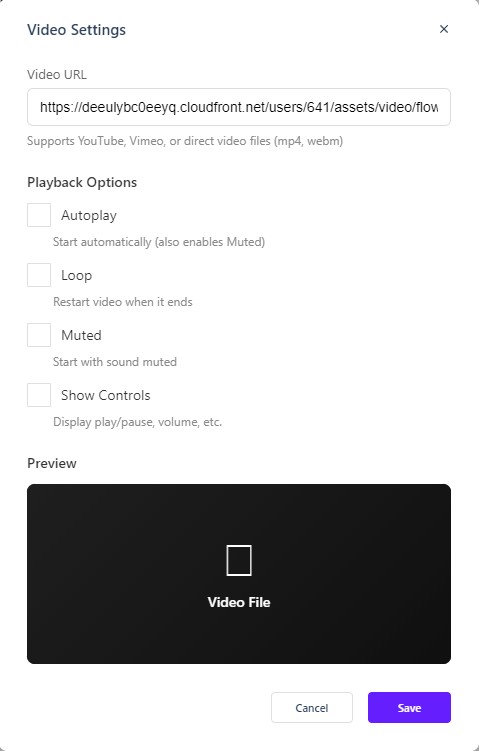
- Paste the source. Select the video element, click Video Settings on its element label, and paste your YouTube or Vimeo link, or a direct video file URL (mp4, webm), into Video URL in the dialog; the same field sits in the right-hand properties panel.
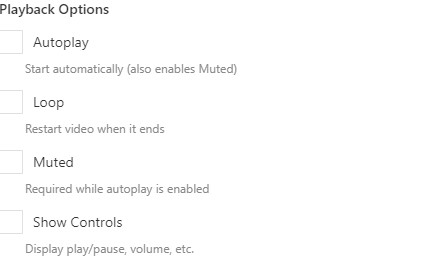
- Set playback. In Playback Options, toggle Autoplay (starts automatically; also enables Muted), Loop, Muted, and Show Controls. A live Preview appears once a URL is entered; click Save to apply.
If it doesn’t work
- No preview appears. The Preview only appears once a URL is entered: paste the YouTube, Vimeo or file URL into Video URL.
- The video plays silently. Autoplay also switches Muted on, so a clip that starts by itself starts with no sound.
- It does not start on its own. Turn on Autoplay in Playback Options; the clip will also be muted.