The Pages panel gives you a high-level view of your document’s structure, allowing you to easily add, organize, and configure individual pages within your project.
Global Page Actions
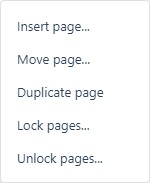
At the top of the Pages panel, clicking the ellipsis (…) icon opens a menu for document-wide page management. From this dropdown, you can perform several actions:
- Insert page…: Add a new blank page or template into your project flow.
- Move page…: Rearrange the reading order of your existing pages.
- Duplicate page: Create an exact copy of a currently selected page.
- Lock pages… and Unlock pages…: Secure specific pages to prevent accidental edits or structural changes.
Individual Page Settings
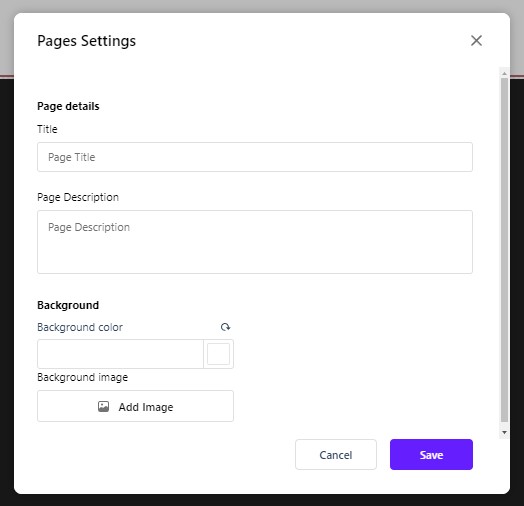
Each page thumbnail in the panel features a gear icon in its bottom right corner, which opens the Pages Settings modal. This modal allows you to configure specific attributes for that individual page:
- Page details: Enter a custom Title and a Page Description to help logically organize your content and provide metadata context.
- Background: Set a specific background for the individual page by entering a hex code into the Background color field, or click the Add Image button to upload and apply a custom background graphic.
Once you have configured your page settings, click the purple Save button at the bottom of the modal to apply your changes.