

The dashboard is where you start a project in Replicate, Flow or Studio, pick up recent work, and reach your account settings and libraries. The navigation around the account is covered in Account and Navigation Basics.
Starting a New Project
The What would you like to create? section is located at the top of the dashboard and provides three primary tools for content generation:
- Replicate: Turn a PDF into an interactive flipbook.
- Flow: Create a flipbook as well as a responsive digital experience from a PDF.
- Studio: Design a responsive publication from scratch, a PDF, or a template.
Managing Recent Projects
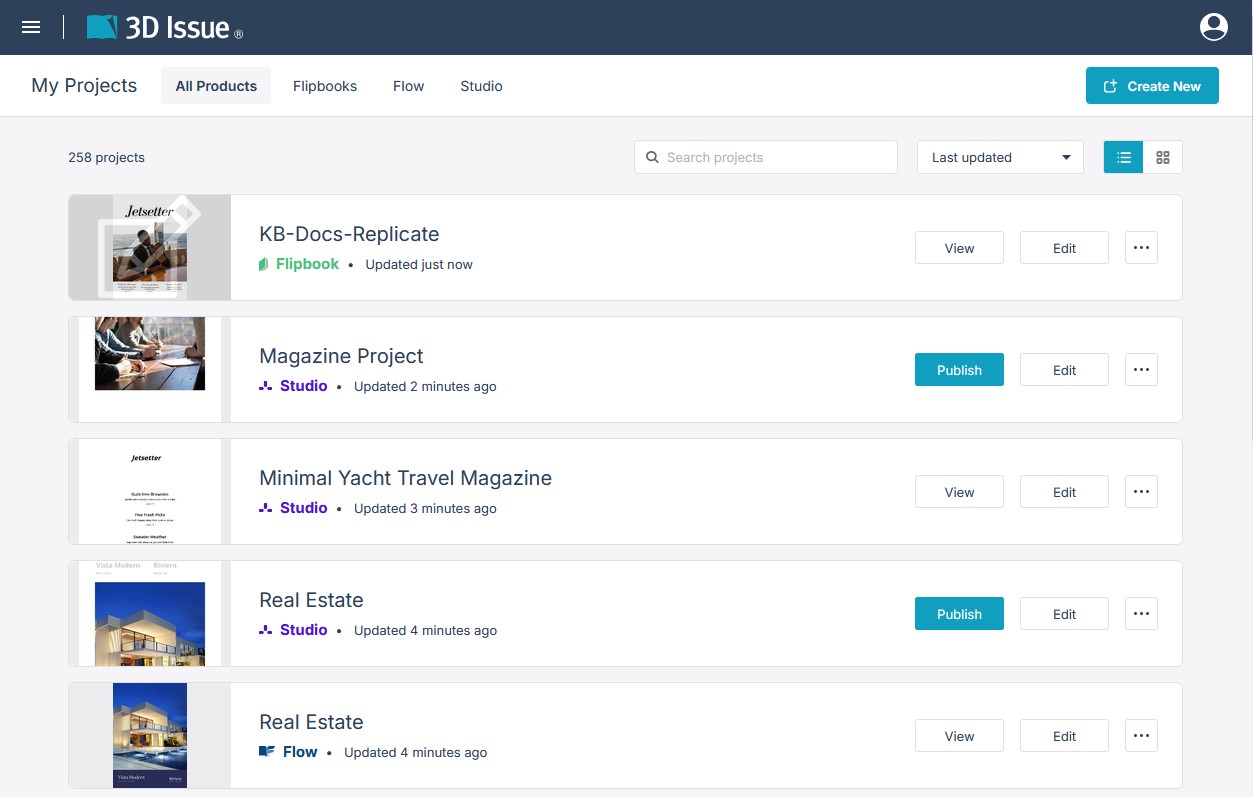
Directly below the creation tools, the Recent Projects list displays ongoing and completed work.
- Each entry lists the project title, the specific tool used to create it (Replicate, Studio, or Flow), and a timestamp indicating when it was last updated.
- Quick-action buttons are located next to each project, allowing users to Publish, View or Edit the project.
- The ellipsis (…) menu is provided alongside the quick actions, and can be used to View, Preview, Rename or Delete the project (View becomes available once a project has been published).
- Legacy projects have no menu to open: their row shows a disabled View button and a disabled More options (…) button, and Edit is the only action that works (see Legacy projects: what older projects can still do (e-347)).
- You can sort and organize this view with the drop-down menu to filter by project type, alongside toggle icons to switch the display between list and grid layouts.
AI Credits
AI features across Replicate, Flow and Studio are paid for with AI credits. The dashboard tracks them for you: an AI Credits meter sits at the top of the Recent Projects block, between View all and the product filter, showing a progress bar and a used/total readout (for example 26/1500) with an info icon alongside it. It runs used over total, so the first number is what the account has spent this month and the second is its monthly pool — a low first number means most of the allowance is untouched.

- Monthly allowance: accounts get 300 AI credits per user per month, pooled across the whole account so every team member spends from the same pool — a five-user account pools a 1500 allowance (the 26/1500 readout in the screenshot).
- PDF conversions: 1 page = 1 credit — a 20-page PDF conversion costs 20 credits.
- AI assistant (Kelda): usage varies with the request, but 1 credit covers quite a lot of work — everyday edits and questions rarely dent the pool.
- Image generation: 3 credits per generated image.
- Article generation: 1 credit yields roughly 3–5 articles, so a single credit goes a long way for written content.
Credits are shared: every team member draws from the same pool, so a colleague’s heavy week comes out of the allowance you spend from too. The meter on the dashboard is where you check it before starting a large job — a long PDF conversion is the one task where the cost scales directly with size, so glance at the remaining count first. The total beside the bar is that shared pool in full: the 300 per user multiplied by the number of users on the account (a five-user account shows /1500). For the full cost reference — what each tool charges and how to plan heavy jobs — see AI credits: your allowance and what each tool costs, and if the pool runs dry before the reset, What happens when the AI credits run out?.
Global Navigation
The dark top navigation bar remains visible across the platform and provides access to broader account, asset, and support features.
Main Menu (Top Left)
- Clicking the three-line hamburger menu icon next to the 3D Issue logo opens a dropdown panel.
- The panel holds seven items: Create New, My Projects, Dashboard, Save, Save as Template, Save Page as Layout, and Help.
User Menu (Top Right)
- Clicking the circular profile icon opens the account menu, which displays the user’s role on the platform.
- This dropdown takes you to Projects, Media, Brands, Team, and the Library page.
- Users will also find the option to Log out of their active session at the bottom of this menu.